6. Submit Claims
Written By cedars team
Last updated About 2 years ago
A claim submission refers to a quarterly or yearly period when a program administrator uploads savings and cost data to CEDARS that describe their program activities for the time period. A submission can comprise one or multiple uploads.
1. Navigate to Quarterly Claims
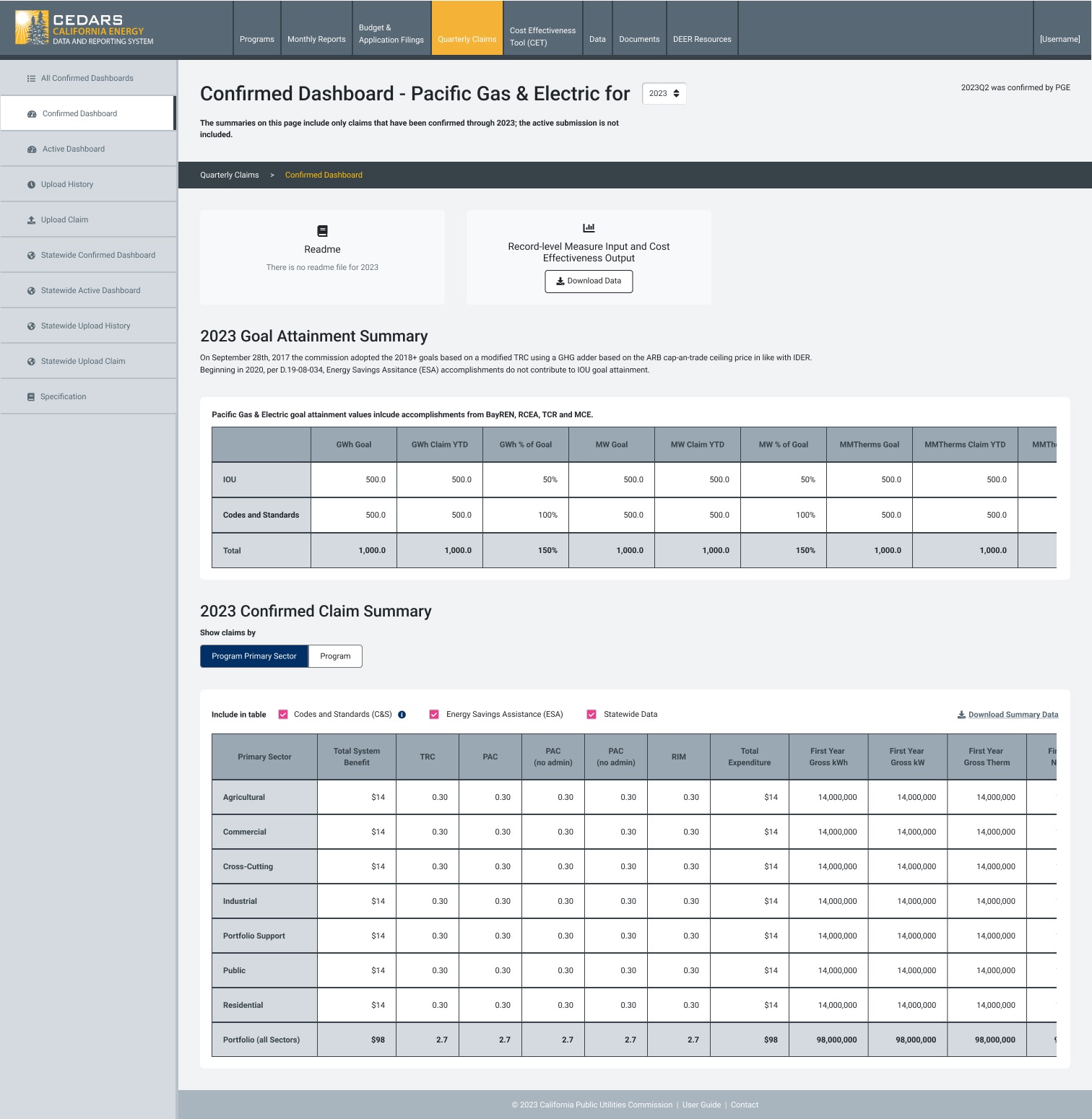
Click the Quarterly Claims tab. This action will take you to the Confirmed Dashboard, where you can view the most recent confirmations and data for all Program Administrators (PAs). For new Program Administrators, it will state that you have yet to confirm any claim data.
On the top half of the Confirmed Dashboard page, you can view any Readme available for the year's claim submission and download the data for the record-level measure input and Cost Effectiveness Output.
IOU program administrators will have a Goal Attainment Summary table, and all Program Administrators will have a table showing the confirmed claim summary, which has two views: Program Primary Sector and by Program.
2. Prepare Your Claims Submission File
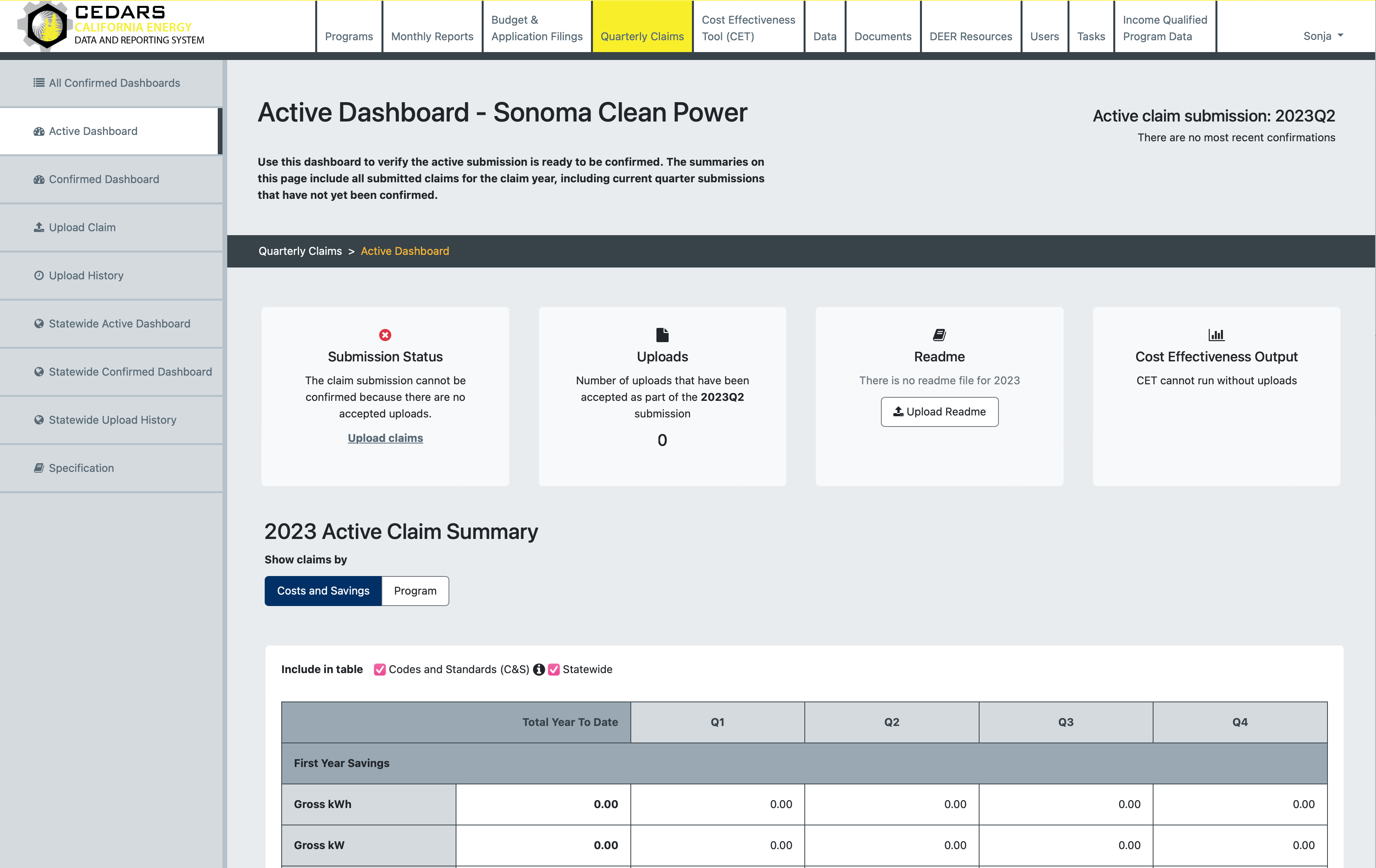
Click the Active Dashboard link of the left navigation menu. The claim you need to prepare will be for the active claim submission shown on the top right of the Active Dashboard. For detailed instructions on file preparation and data requirements, please refer to the specification section within the Quarterly Claims module.
On the top half of the Active Dashboard there are several information cards.
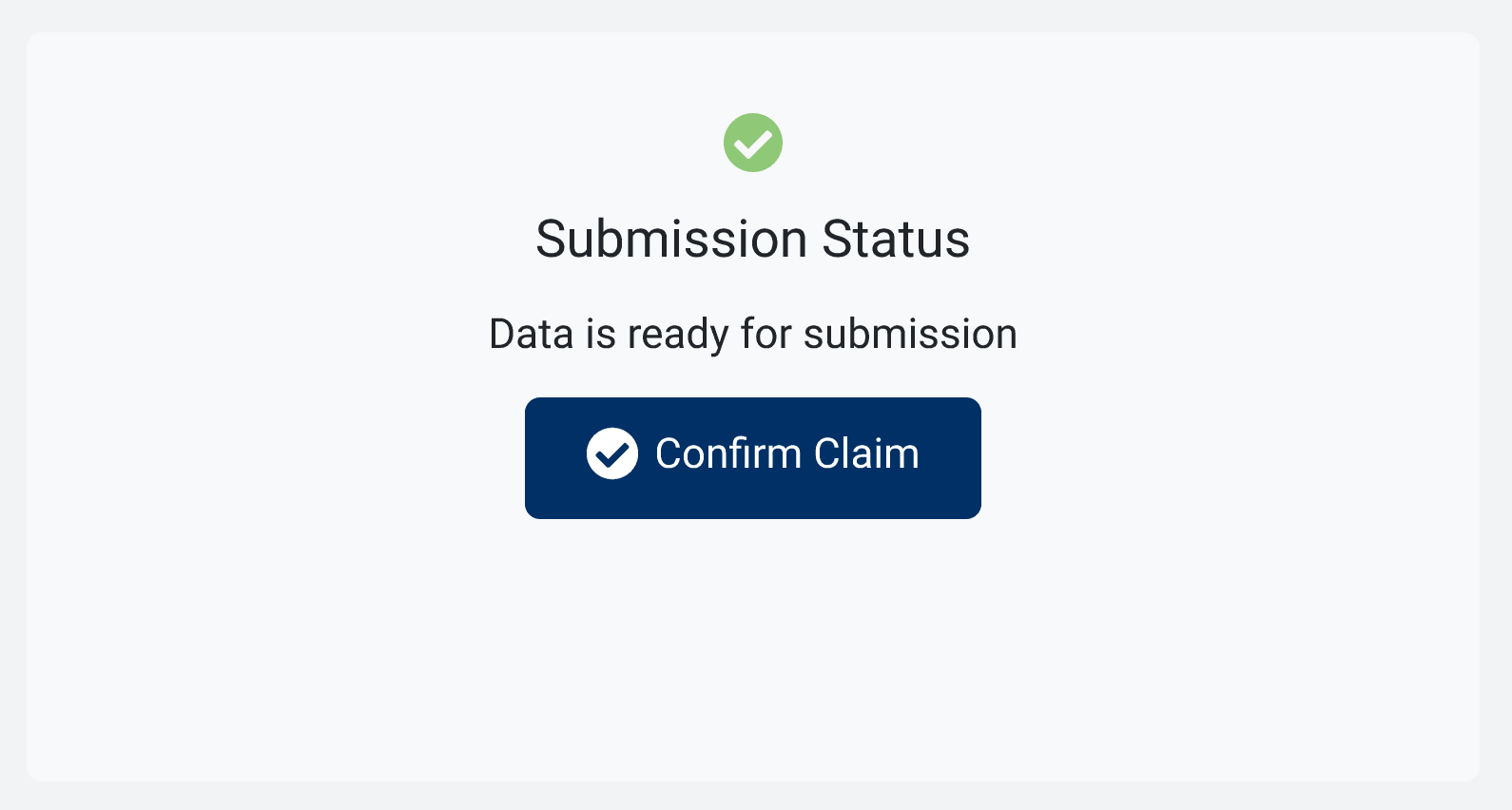
Submission Status - Will provide guidance on steps to confirming your submission
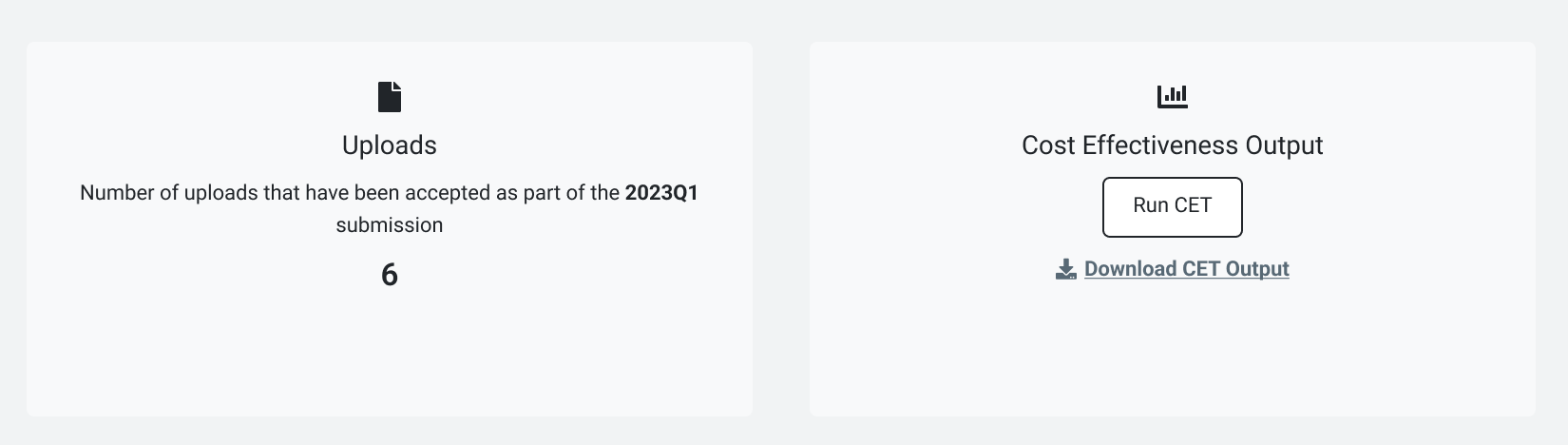
Uploads - Will let you know if there are any accepted uploads
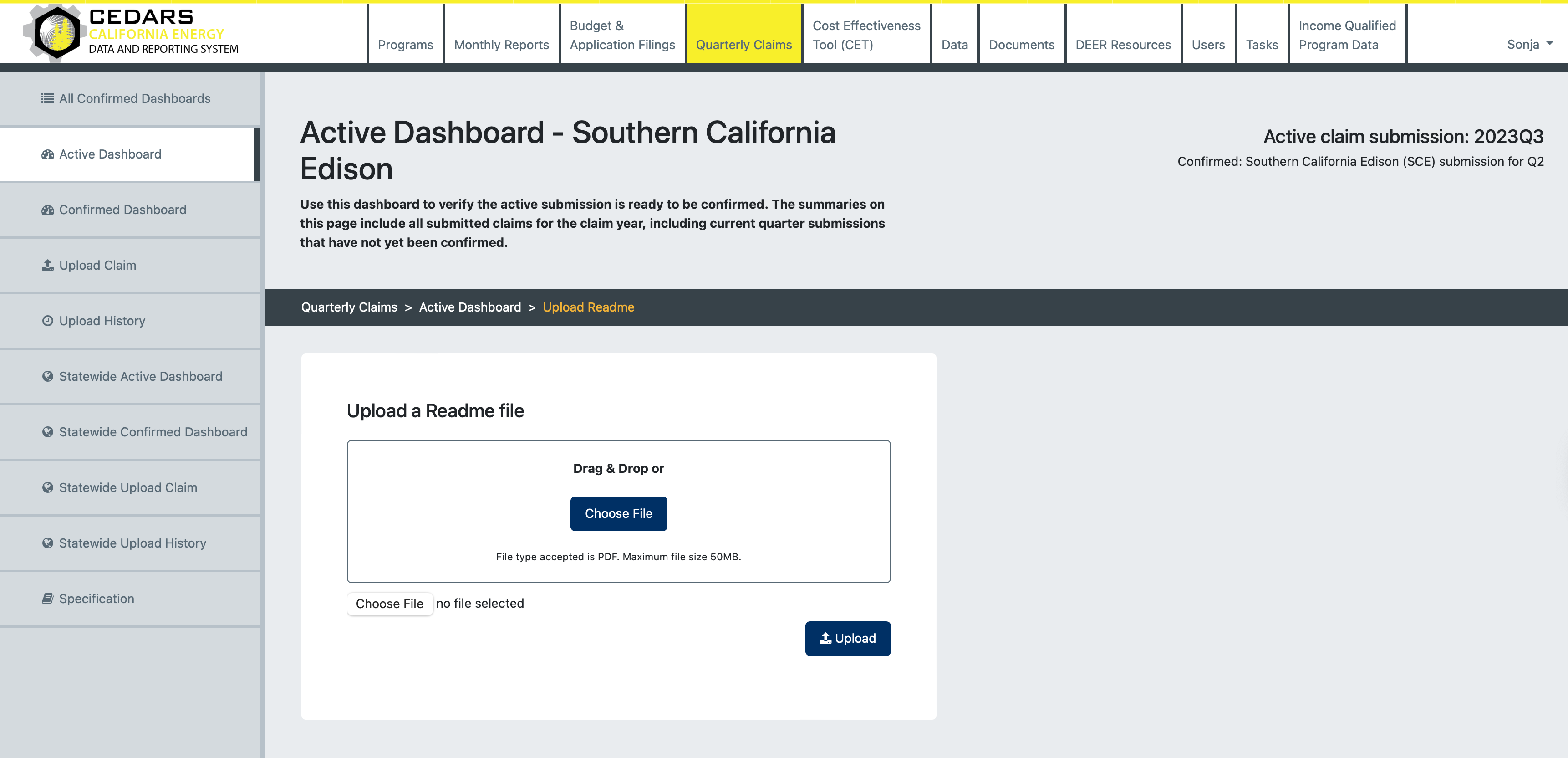
Readme - This is where you upload a Readme for the years Claim submission
Cost Effectiveness Output - Is where you can run the CET, guidance will be shown here with steps that you need to complete before running the CET.
3. Uploading Your Claim Submission
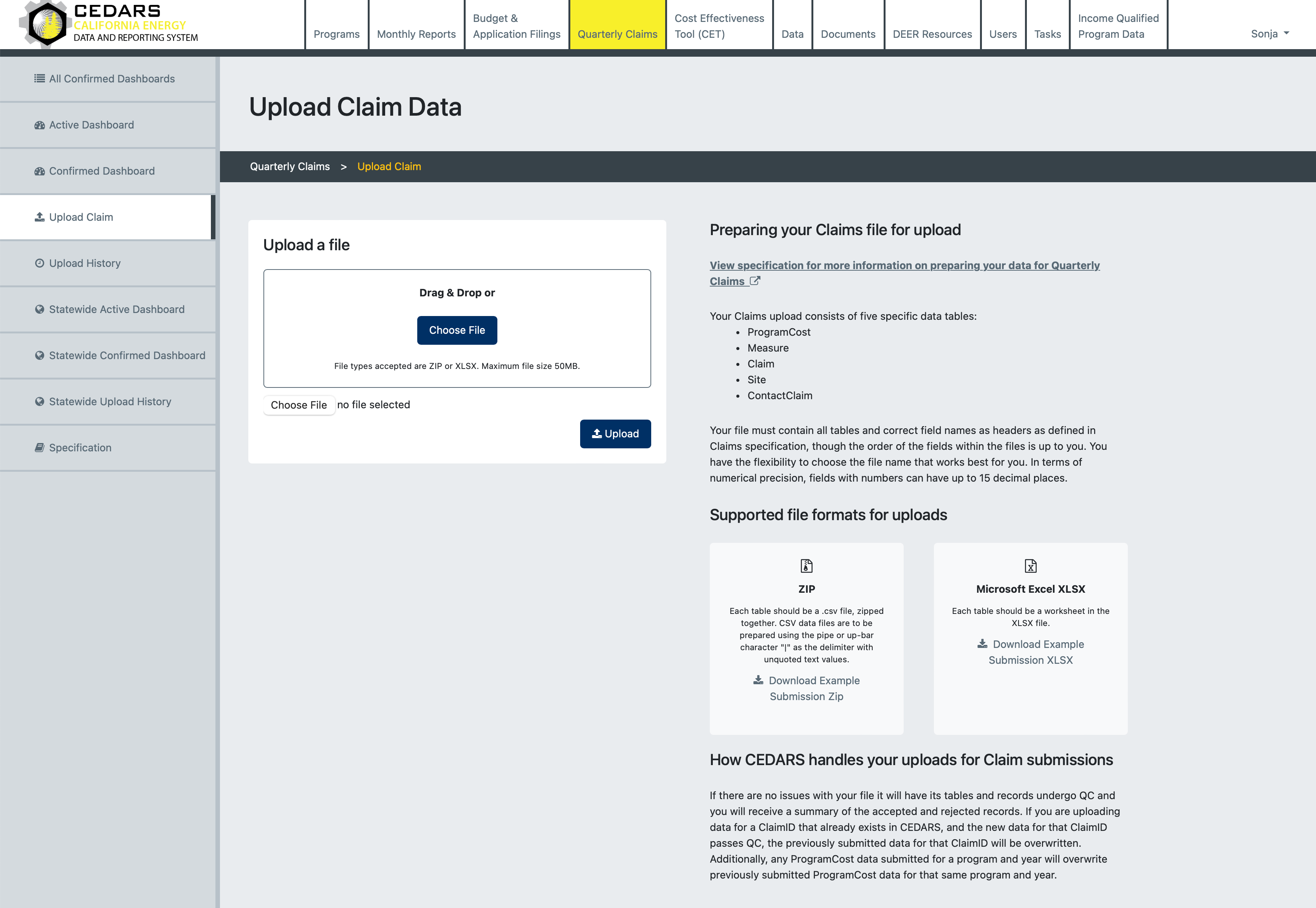
On the left navigation panel, locate and click Upload Claim. Choose the file you wish to upload and click the Upload button. If your file type is accepted and there is no errors with missing tables or headers, you will be directed to the Upload History page.
4.Checking Upload Status
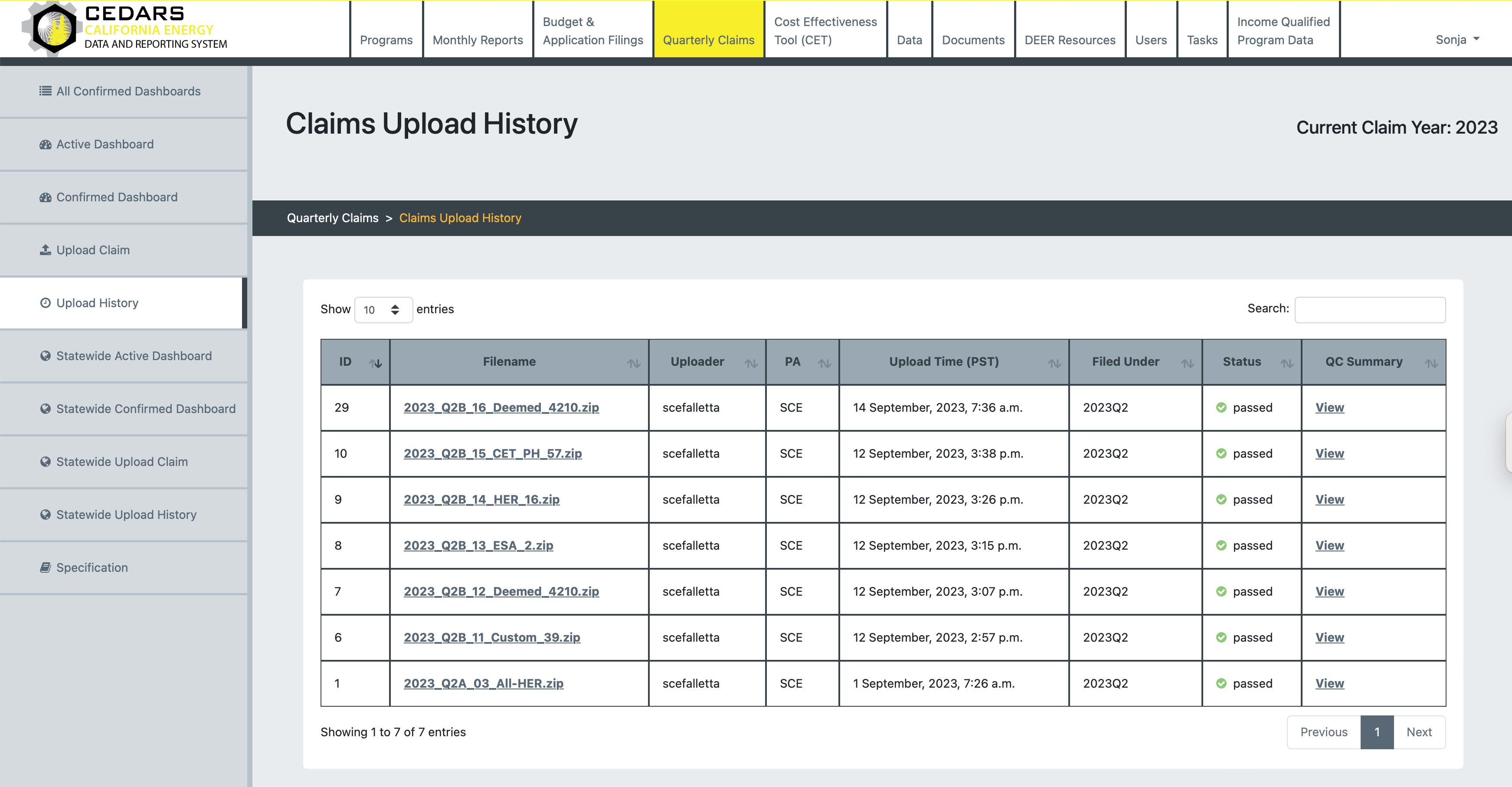
For checking an upload status, visit the Claims Upload History section. You can find information regarding the your claims upload by looking at the stats column which will display one of the following:
Processing - CEDARS is currently processing your file.
Server error - An unexpected issue occurred on our end, preventing CEDARS from processing your upload.
Table errors found - CEDARS accepted no records.
Record errors found - Some records have been rejected.
Warnings found - Records were accepted but may have violated recommended data rules.
All QC passed - All records have been accepted without issues, and no feedback exists.
5. Reviewing Claims Data
There are several places where you can review your claims data.
Upload summary - You can access this summary from the upload history page, which provides information on processed, re-uploaded, rejected, and accepted records, along with accepted record first-year and lifecycle savings and any QC feedback.
Active dashboard - The Active dashboard allows you to review savings from all your submission uploads for the current submission period. Use this dashboard to ensure your submission is ready for confirmation. It includes all submitted claims for the claim year, including current quarter submissions awaiting confirmation.
Confirmed dashboard - This dashboard exclusively displays summaries of confirmed claims, excluding uploads from the active claim submission period.
All confirmed dashboard - This page summarizes all program administrators and statewide program claims confirmed year-to-date.
6. Running the CET on Claims Data
From the Active Dashboard, you can run claim data through the cost effectiveness tool (CET) to review the metrics calculated for the claim data before confirming the claim submission. The CET can only be run after accepted records have been uploaded.
7. Upload a Readme
If you want to include additional notes and information about your claim for CPUC and evaluation teams, you can upload a readme file from the Active dashboard. This is optional.
8. Confirming Claims Data
Program administrator admin users can confirm claims from the Active dashboard for a submission period (quarterly or yearly). The confirmation of a claim submission requires the following conditions:
The CET needs to be run on all uploaded data before you can confirm your claim submission.
A quarterly submission can only be confirmed if it has at least one completed (validated and accepted) upload for the present quarter.
A yearly submission (YR) can be confirmed even if no uploads were made in the yearly submission period. This can happen if your review confirms that uploads for Q1 through Q4 were correct and contain the best available data.
A quarterly submission can't be confirmed if it contains ProgramCosts for a future quarter. This can arise when there were uploads under the current quarter and then the previous quarter is re-opened. Example: the confirmation button for the 2023Q3 submission won't be available if CEDARS contains ProgramCost records for 2023Q4. Should this arise, re-upload the ProgramCosts for the re-opened quarter and they will overwrite the future quarter program costs and then you will be able to confirm.
Was this helpful?
Still need help? Ask the team