4. Submit Budget Filing
Written By cedars team
Last updated 6 months ago
Once your program(s) are set up in CEDARS, the next step is to add your budget filing(s).
CEDARS is accepting budget filings for 2024 - 2027. Existing PAs submit forecasts for those years already once in early 2022; this submission is referred to as a "true-up" because it is a second submission of the same data.
TIP: You may choose to set up your budget filing in Staging while you are finalizing the numbers and then submit the final data to Production.
Initiating Budget Filing
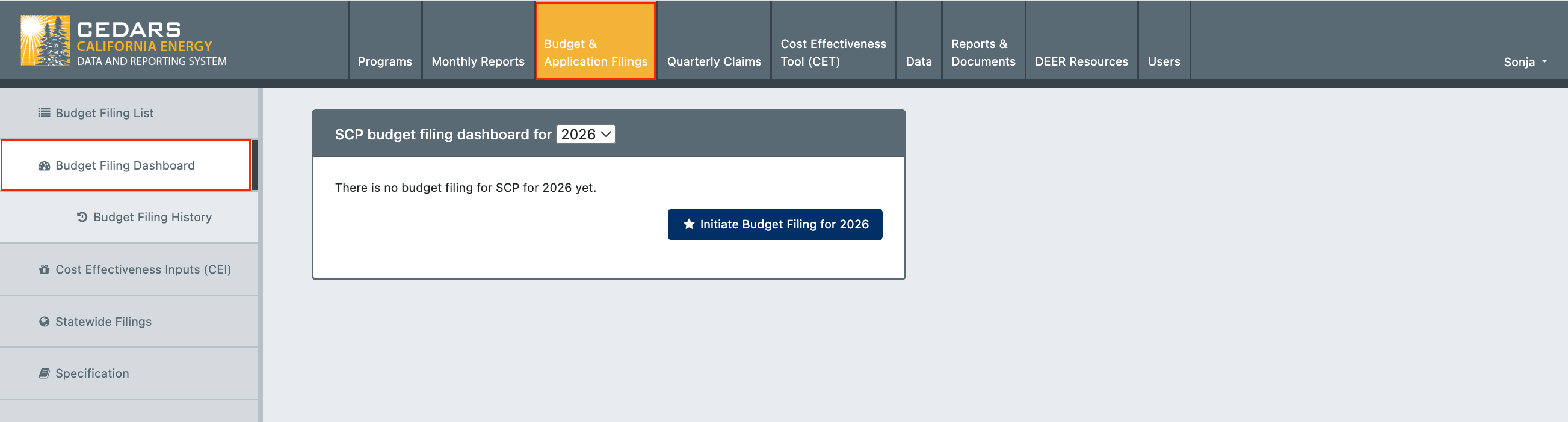
To begin, please log in to your CEDARS account and navigate to the Budget & Application Filings tab. You'll find the Budget Filing Dashboard option on the left navigation panel. Click on the Initiate Budget Filing for [Year] button.
Selecting Programs
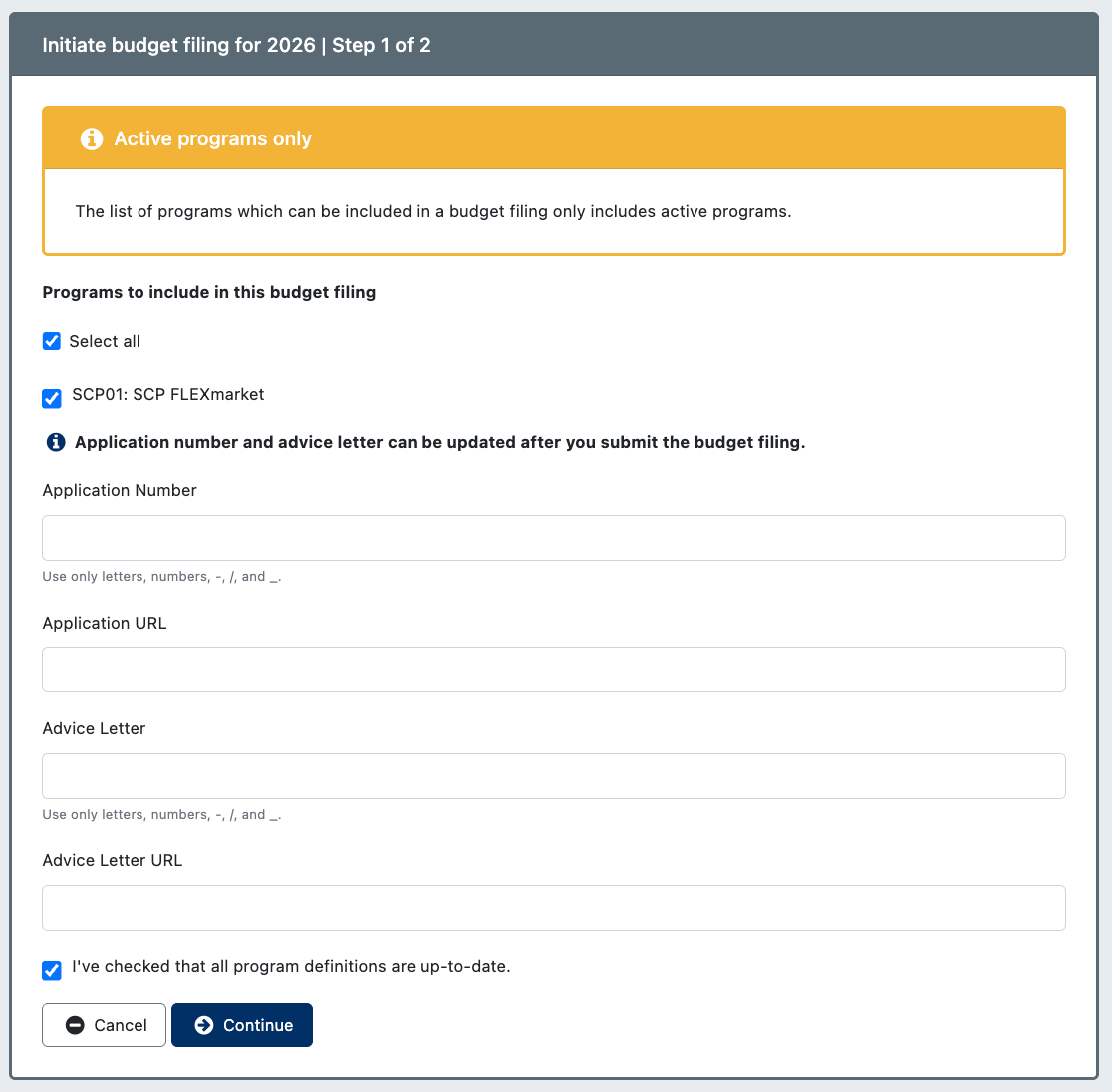
Next, you must select the Programs to include in this budget filing. Provide the Advice letter number. You may put a placeholder for the advice letter number if it isn't yet known and update it later. Note that the application number and advice letter can be added after submitting the budget filing. Check the box to confirm that you've checked that all program definitions are up-to-date.
Review and Confirmation
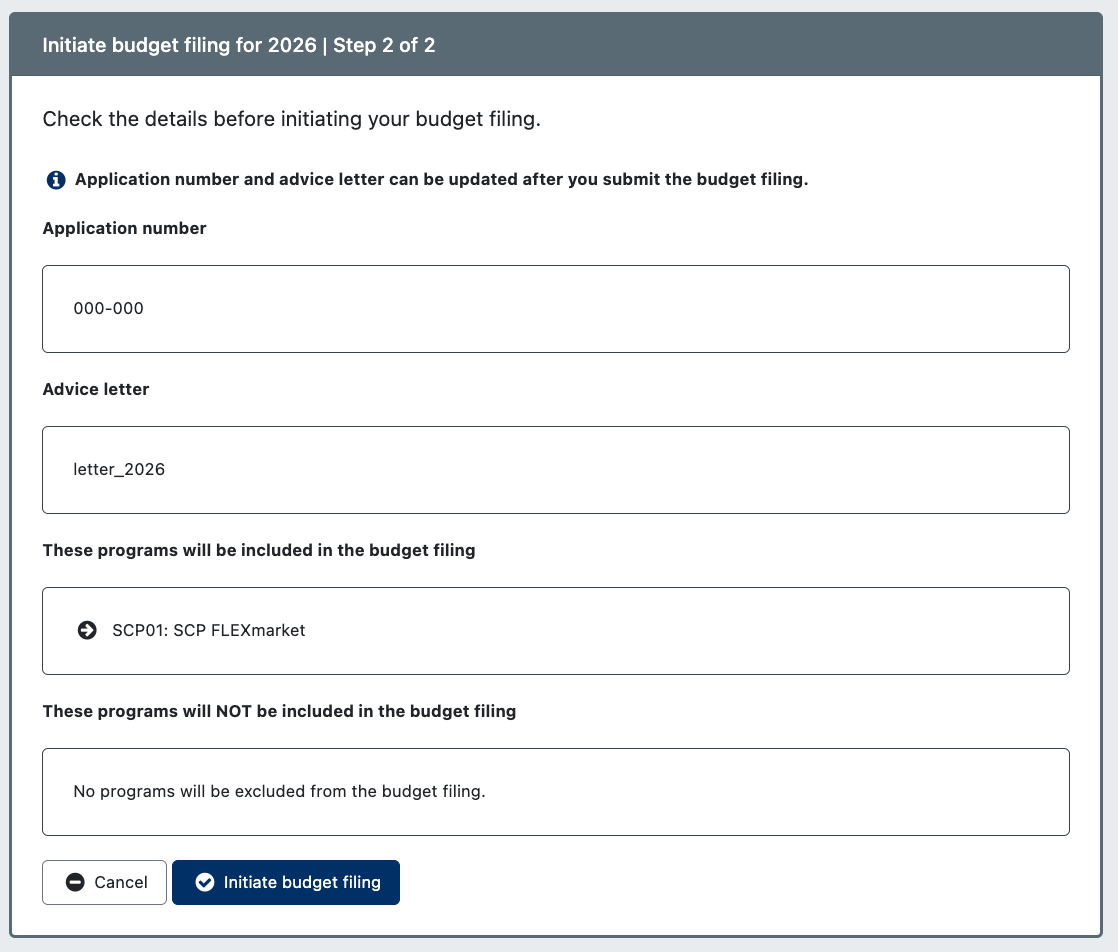
Click Continue to proceed and carefully review the details presented in the summary. Once you're satisfied, click Initiate budget filing.
Active Dashboard Overview
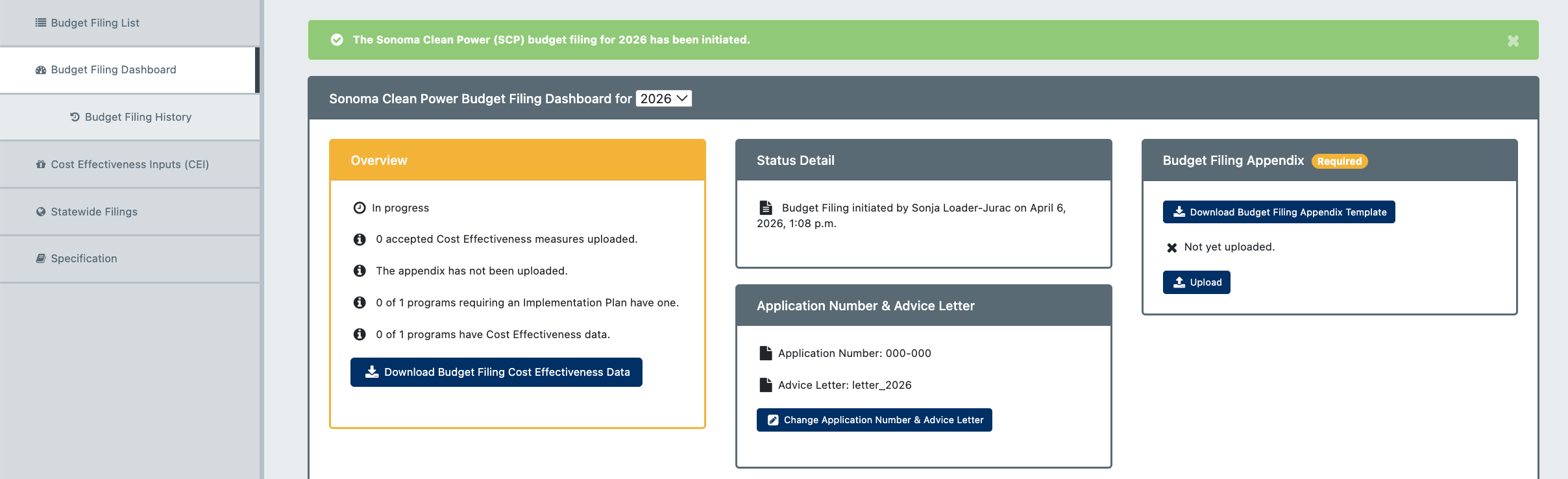
You will now be directed to your budget filing active dashboard. This section provides a comprehensive overview of the budget filing status. You can edit or add the application number and advice letter here (Change Application Number & Advice Letter) and Upload your budget filing appendix as needed.
Managing Programs
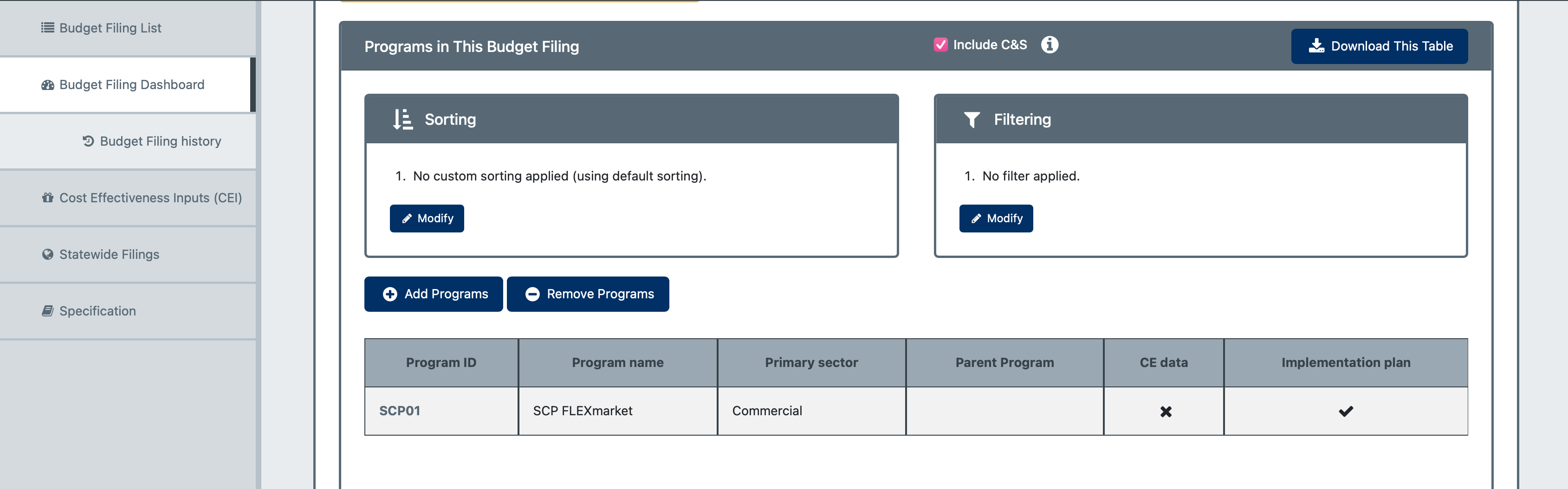
In the lower section of the dashboard, you'll find a program summary and options to add or remove programs from the budget filing. Ensure you have all the necessary details for each program in your filing.
Cost and Savings Data
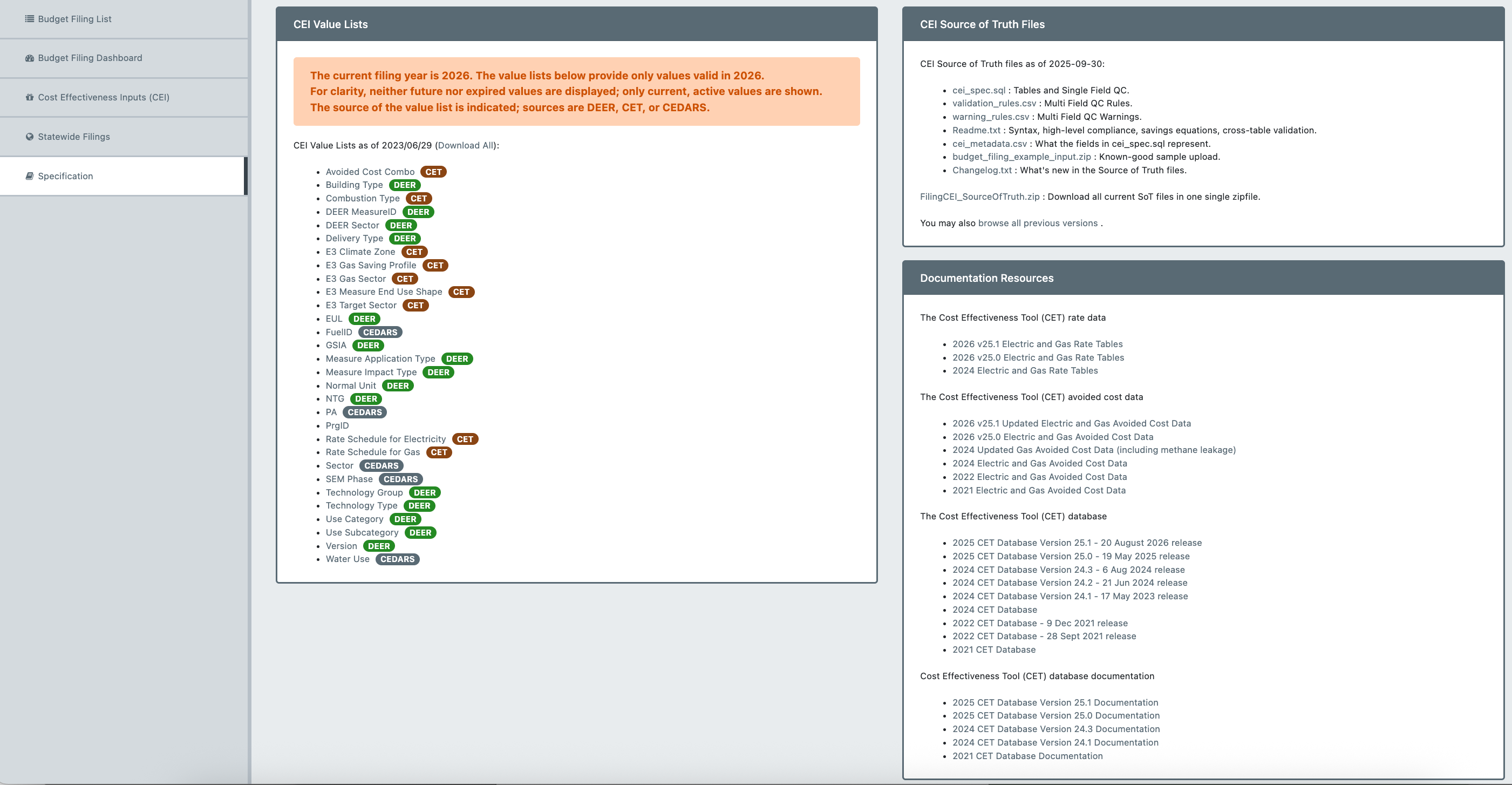
Cost and savings data for every program included in the budget filing is required. You can access the data specification, which describes the required input data format and specifications, by clicking Specification in the left navigation.
Uploading Cost-Effectiveness Inputs
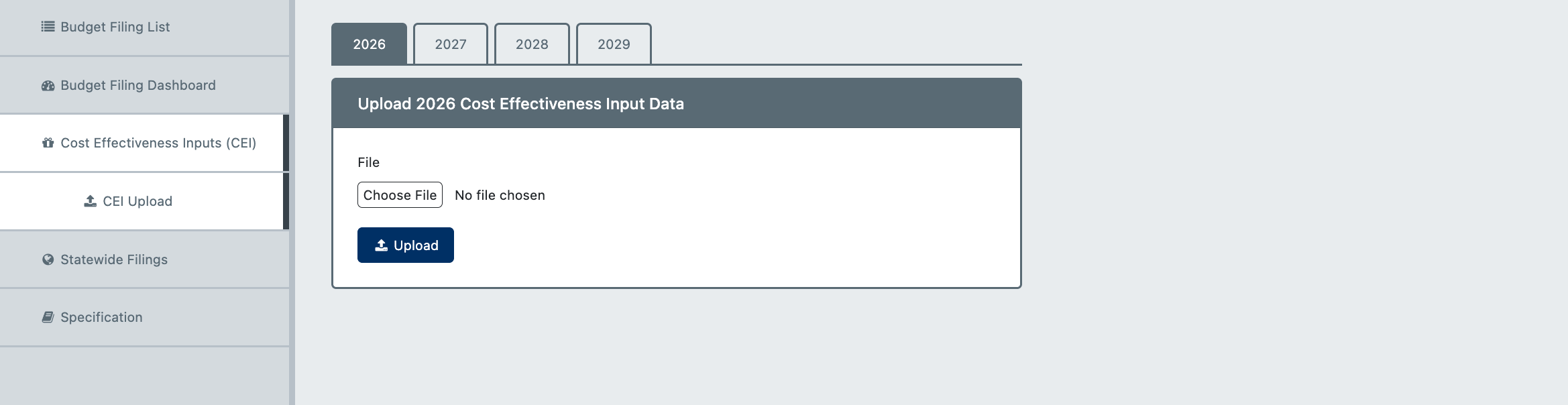
To upload cost-effectiveness inputs for the budget filing, click the Cost Effectiveness Inputs (CEI) button in the left navigation panel. Then, choose the Upload Cost Effectiveness Inputs option or select CEI Upload in the left navigation sub-menu.
Confirm
On the Budget Filing Dashboard there is an orange overview box. The overview box is meant as a guide to show what steps remain to complete the submission, so it's the first place to check to see what remains to be done for each year.
The following needs to be completed before the submit budget filing button shows:
Budget filing appendix needs to be uploaded
All programs require an implementation plan
Cost and savings data for every program is required.
Next step
Submit Monthly Reports.
Was this helpful?
Still need help? Ask the team