3. Adding programs to CEDARS
Adding programs and Implementation Plan (IP)
Written By cedars team
Last updated About 2 years ago
Navigate to programs module
Once your user account is active in CEDARS, the next step is to add your program(s).
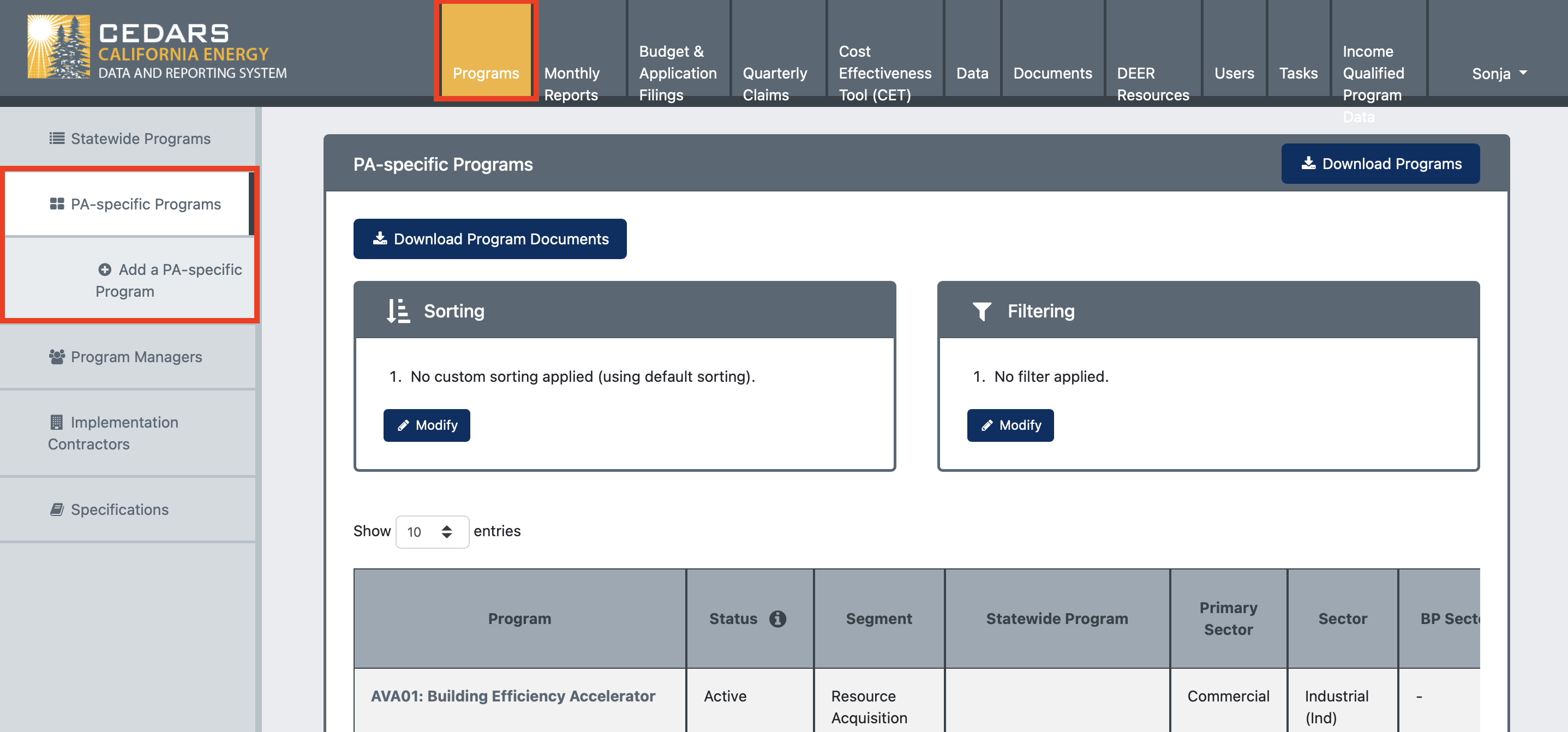
To add a new PA-specific (i.e. not statewide) program in CEDARS, start by clicking on the Programs tab in the upper navigation. That will take you to the PA-specific Programs page.
In the left navigation pane, click Add a PA-specific Program. That will take you to the page to add a new program.
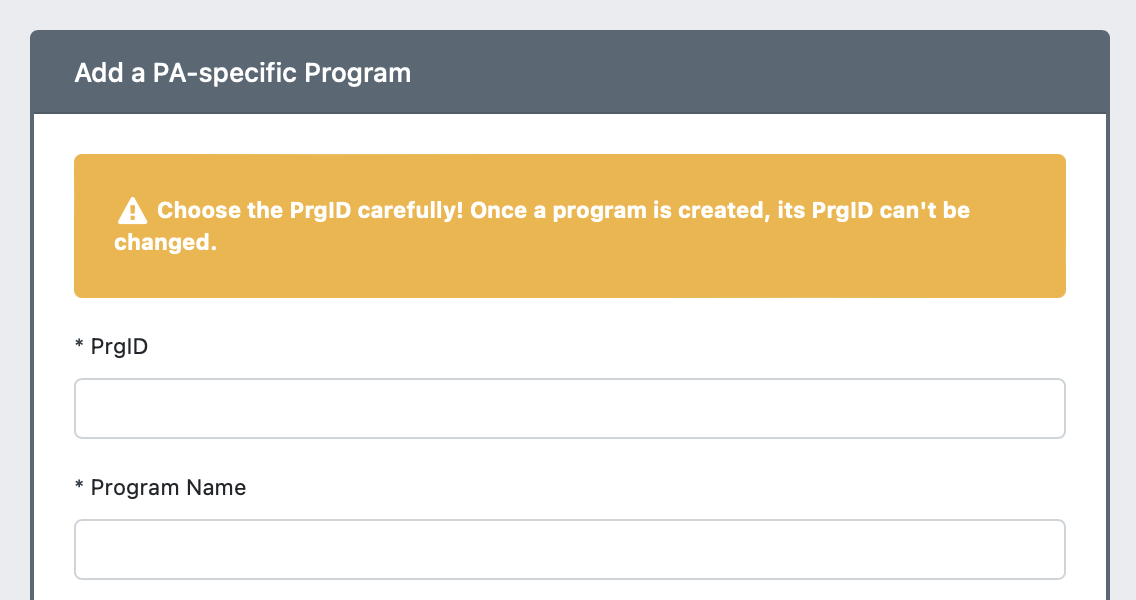
PrgID and Program Name
The program ID (PrgID) and name are the first elements to define. Once the program is created, the PrgID cannot be changed, so choose it carefully. The ID must start with your PA code. After the PA code, the ID may be anything of your choosing. The ID is the unique identifier of the program. Next, provide the verbose program name.
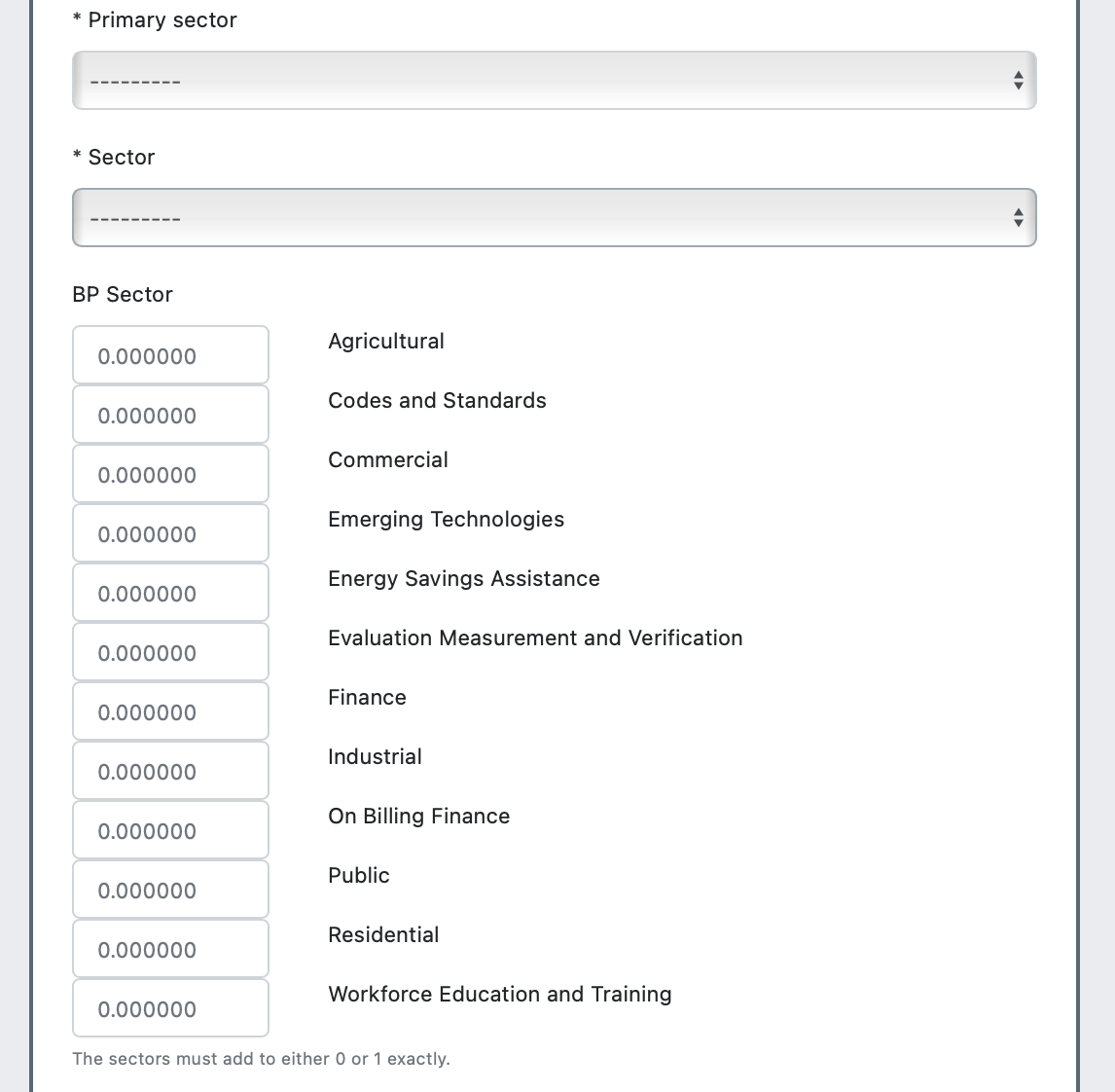
Sectors
After the program ID and name, there are three sector definitions to define. The primary sector options are:
Agricultural
Commercial
Cross-Cutting
Industrial
Public
Residential
Choose the option that best describes the program.
The options for the program primary sector are the same as those for the primary sector except that Cross-Cutting and Public are not options. Again, choose the option that best describes the program.
The third sector definition is the business plan (BP) sector. Here, you provide the allocation of the program into each of the specified groups. The sum of the BP sectors must add to one. For example, if a program will serve 80% residential and 20% commercial customers, you would put 0.8 for Residential and 0.2 for Commercial.
Additional details
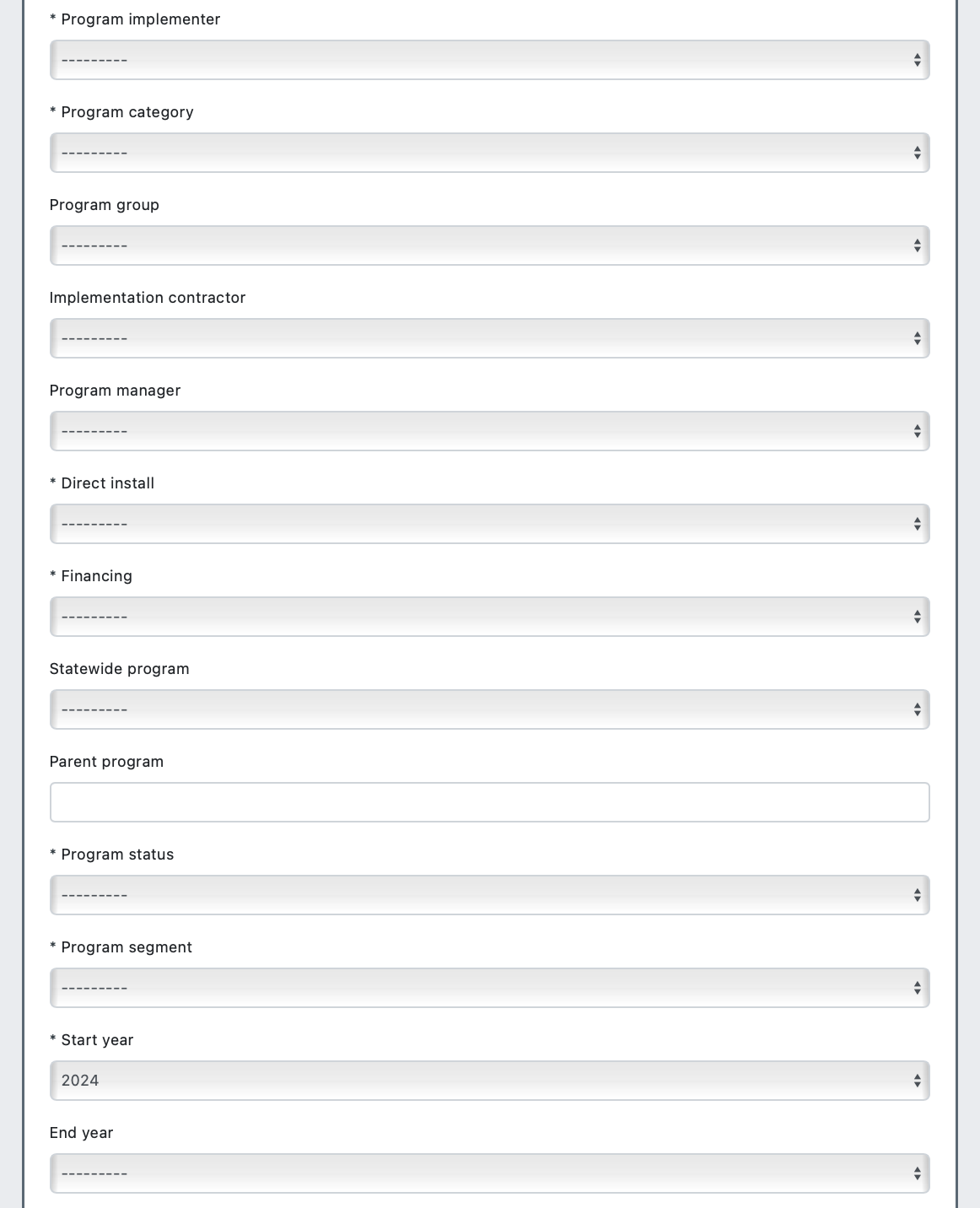
The next fields provide additional details about your program.
You can add Program Managers and Implementation Contractors to the drop down list by selecting the appropriate option in the left navigation and then clicking the +Add button. Choose the best option from the drop down list for each field. You may leave the Implementation contractor, Program manager, Statewide program, Parent program, andEnd Year fields blank (i.e. ----).
The program-level flag fields are the last part of adding a new program to CEDARS.
The Exclude from ... fields are of particular importance. Once your program has been included in a budget filing, the Exclude from ... fields cannot be changed. They control whether the program is included in the CEDARS budget and cost effectiveness summaries. For most programs the fields the Exclude from ... fields should not be selected. Only utility PA-specific costs for statewide programs should ever have the Exclude from statewide flag selected.
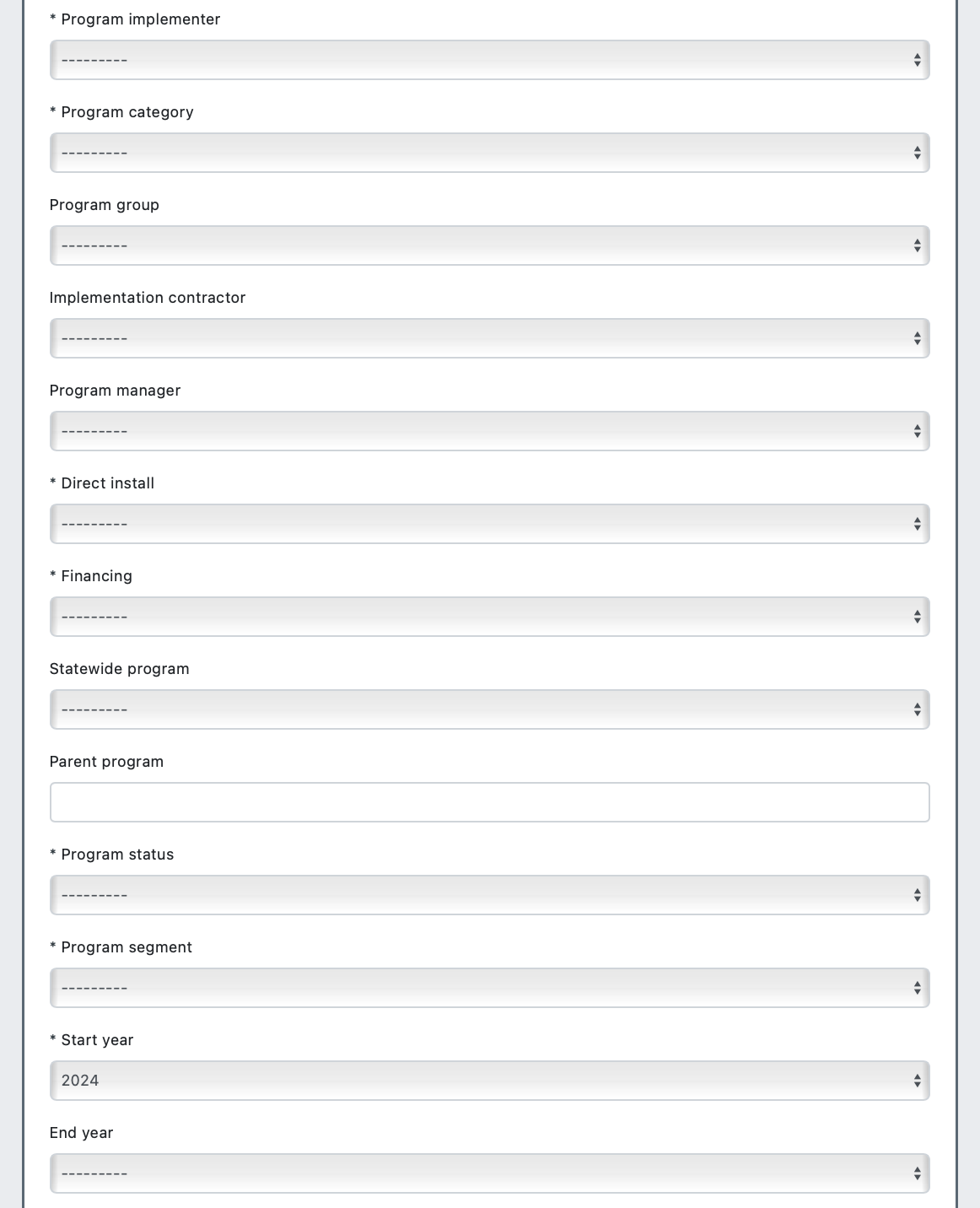
Create program
Once you have provided all of the information about the program, click Create program. If any requirements are not met CEDARS will provide feedback on what you need to update for the program to be added. If all requirements are met the program is created.
View program
You can now go to the program page and upload the program implementation plan. To navigate to the program page, filter by PA in the PA-specific programs page so only your PA programs appear in the table below. Select your new program from the program list.
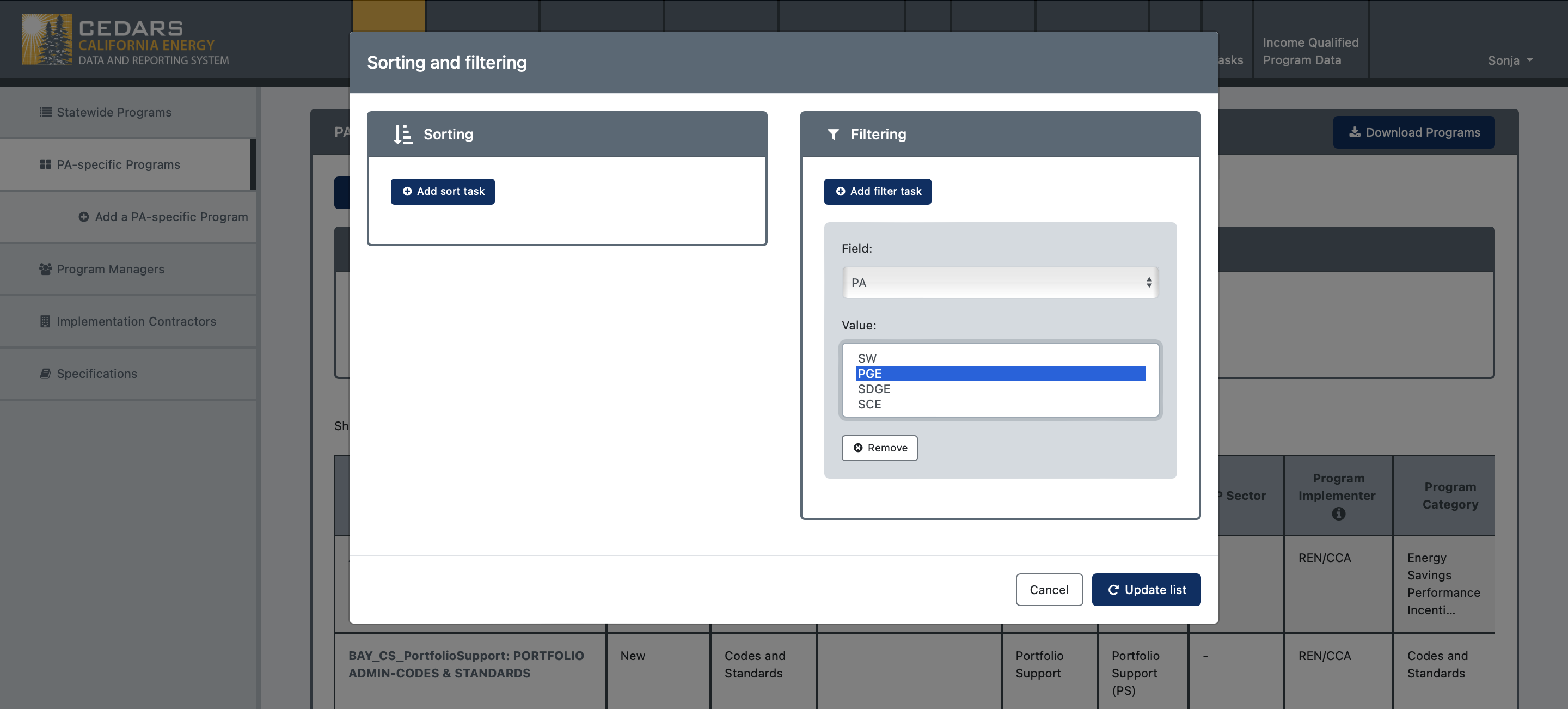
Upload Implementation Plan
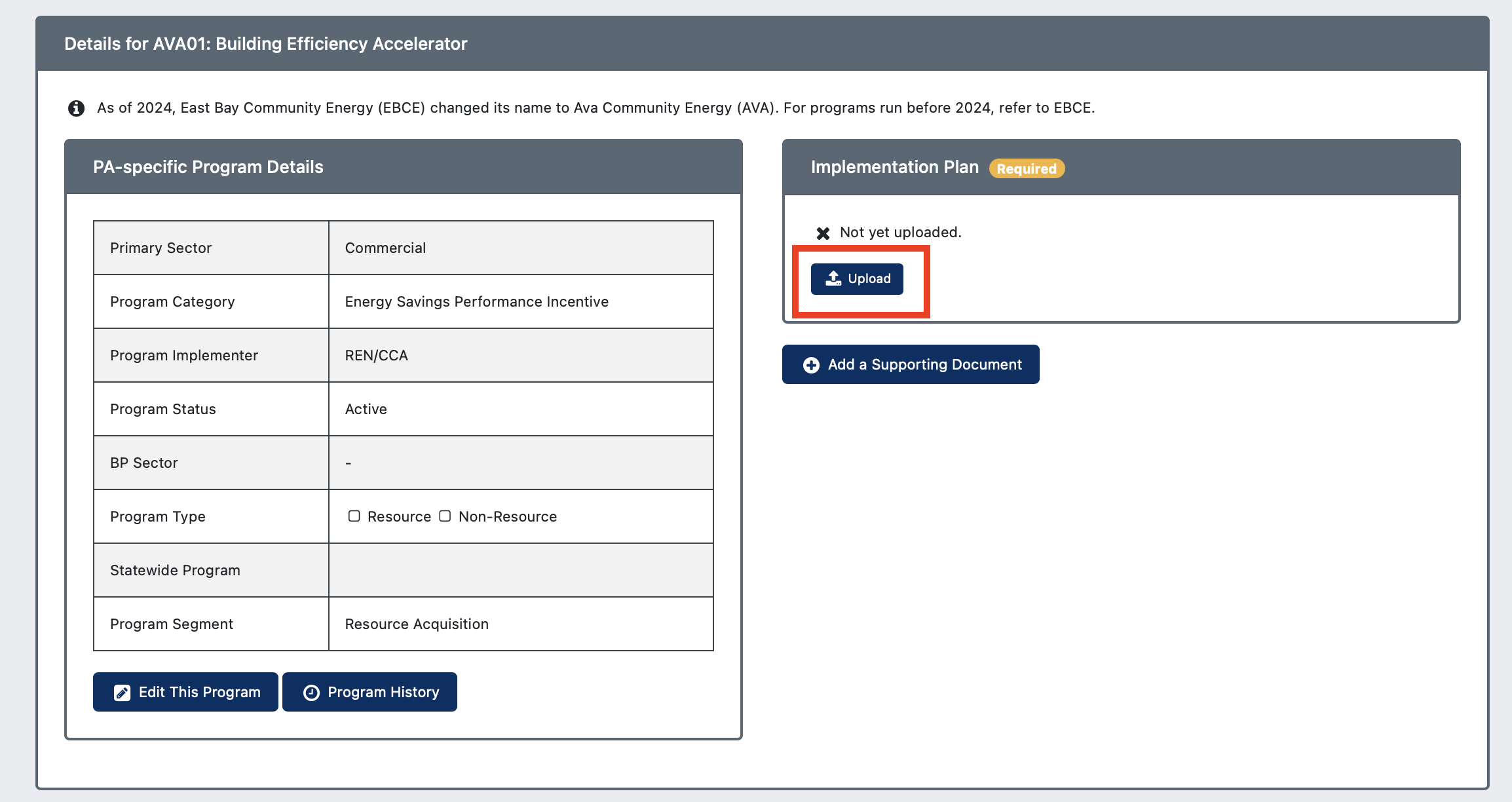
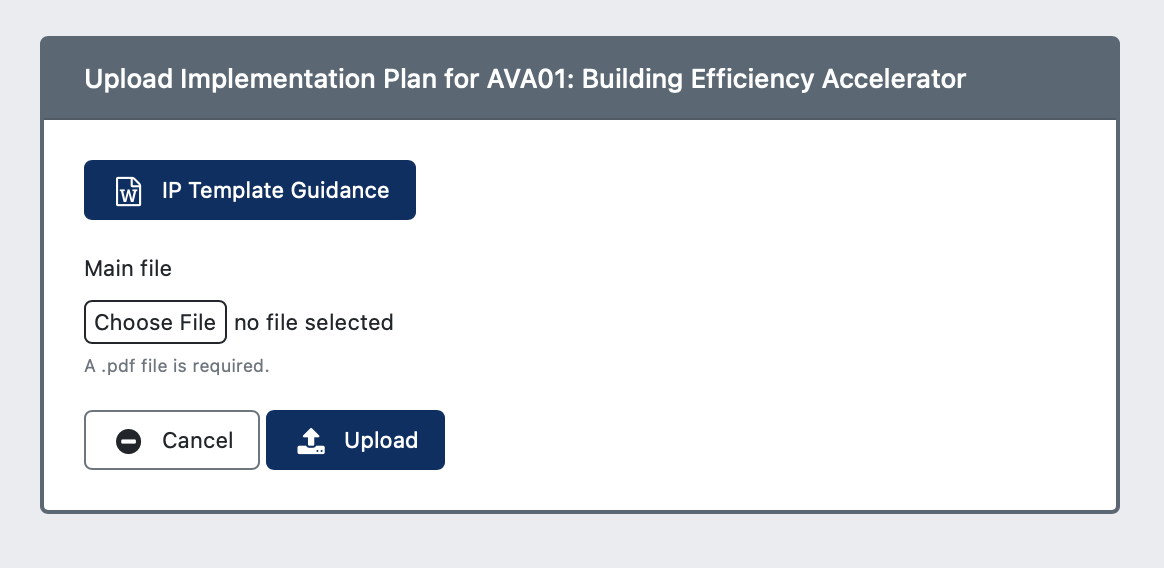
Once on the program page, click the Upload button in the Implementation Plan box to upload the PDF of your program implementation plan. This page is also where you can go if you need to edit any program definition by clicking Edit This Program in the PA-specific Program Details box.
Was this helpful?
Still need help? Ask the team