5. Submit Monthly Reports
Written By cedars team
Last updated About 2 years ago
After you have submitted your budget filing, you can proceed to add your first monthly report.
Navigating to Monthly Reports
Click on the Monthly Reports tab. This will take you to your confirmed dashboard, which displays the most recent confirmations. For new Program Administrators (PAs), if it's your first time, you will see a message stating, "There is no most recent confirmation."
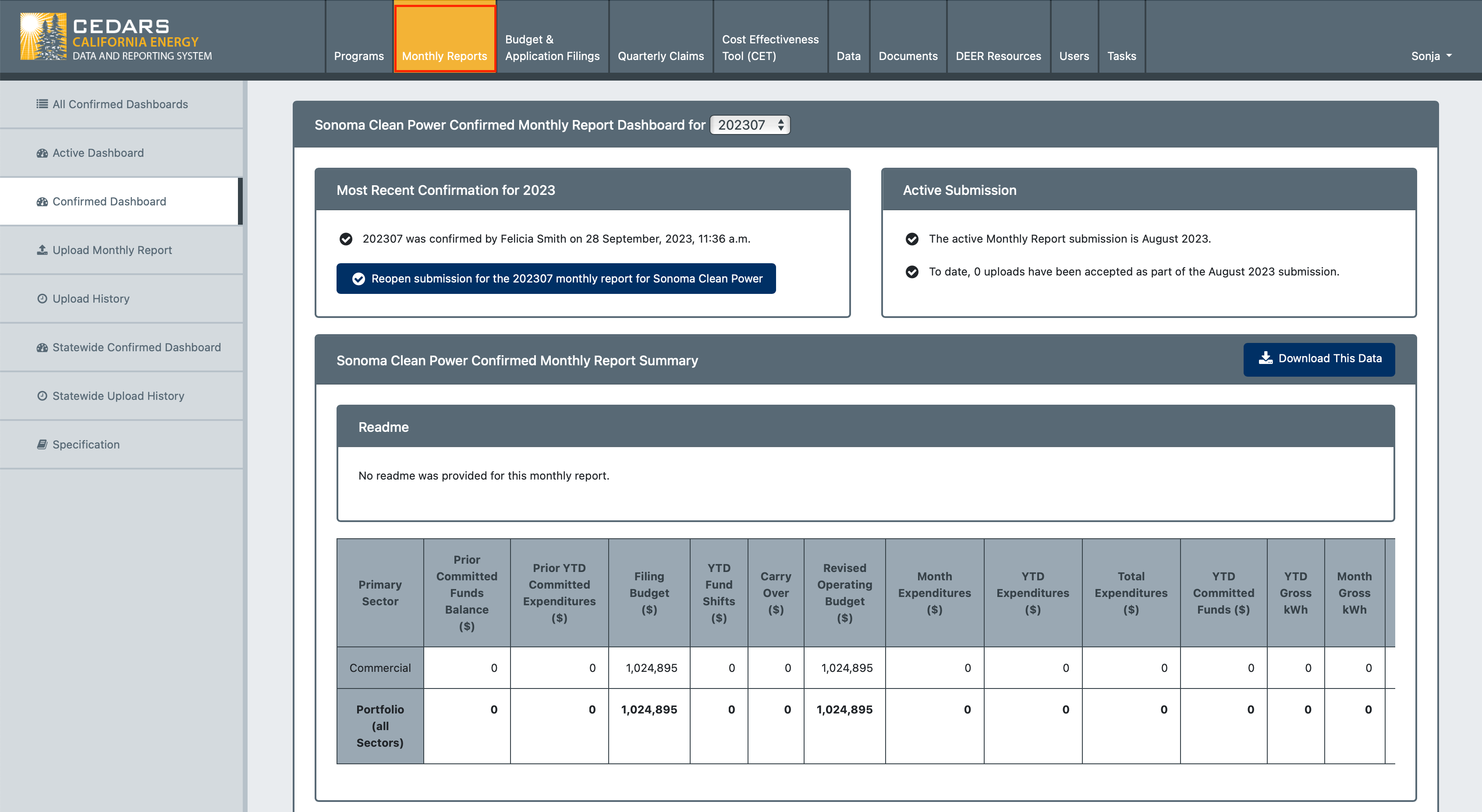
Starting your first Monthly Report
Your first monthly report should begin in the first month of your program's operation. Refer to the Specification section in the Monthly Reports module for details on file preparation and data requirements.
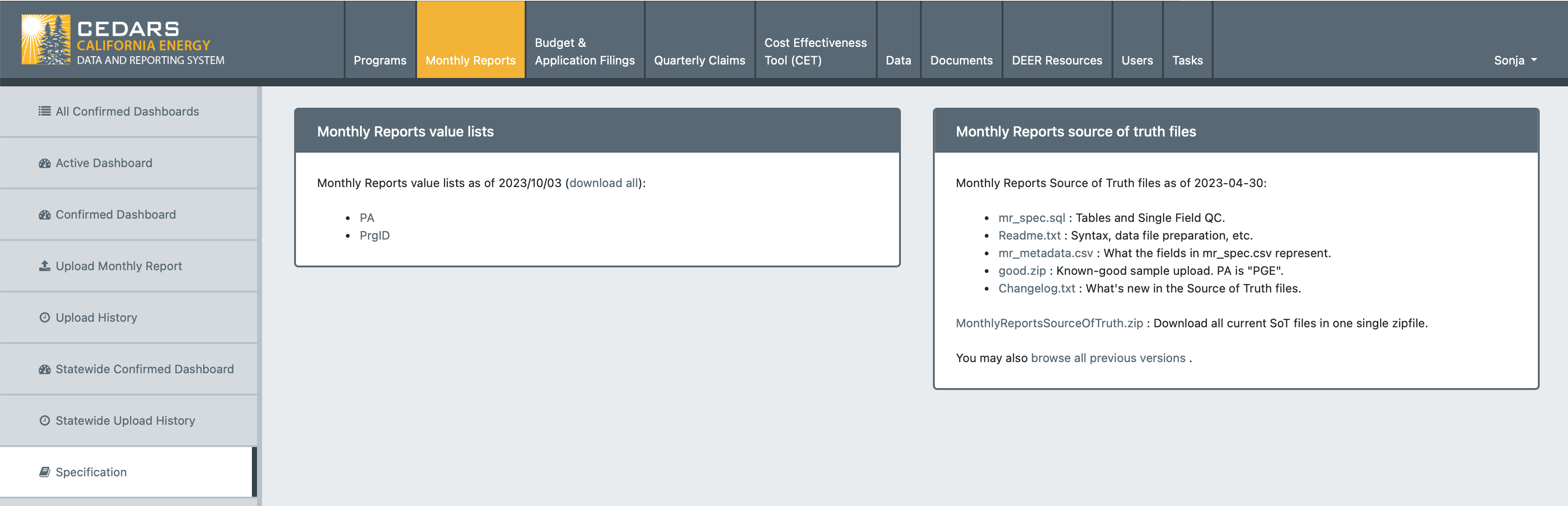
Uploading your Monthly Report
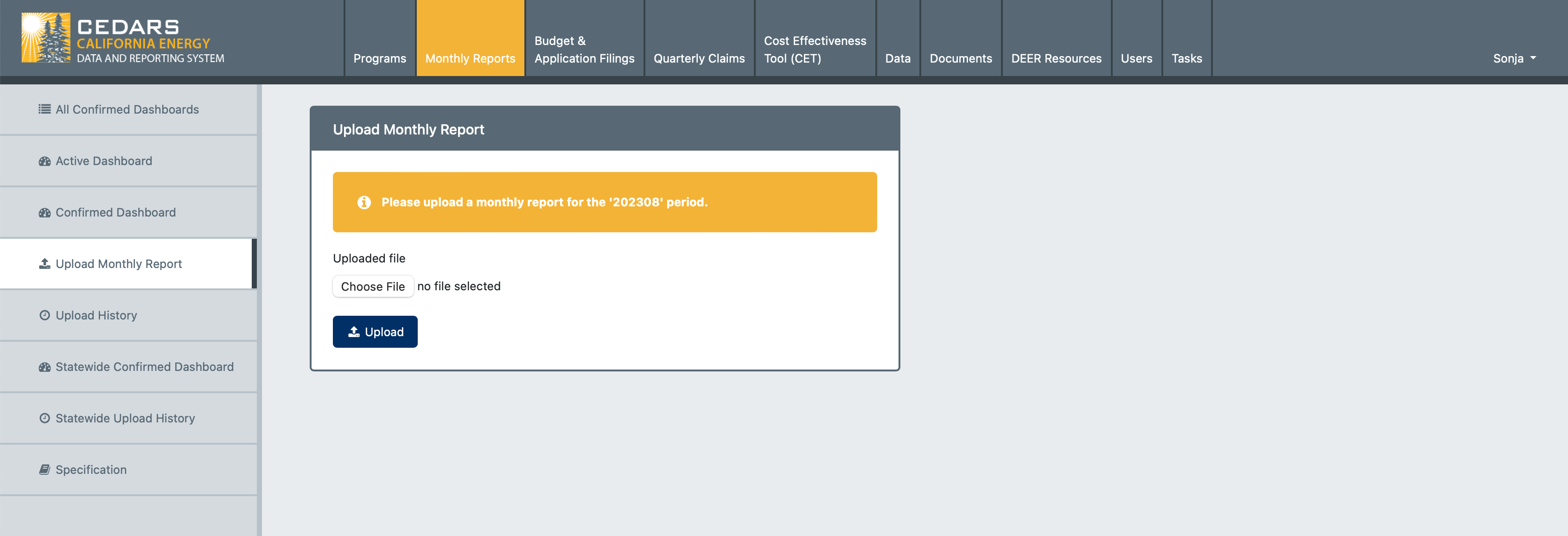
On the left navigation panel, locate and click Upload Monthly Report. Choose the file you want to upload and click the Upload button. You will be redirected to the Upload History page.
Checking Upload Status
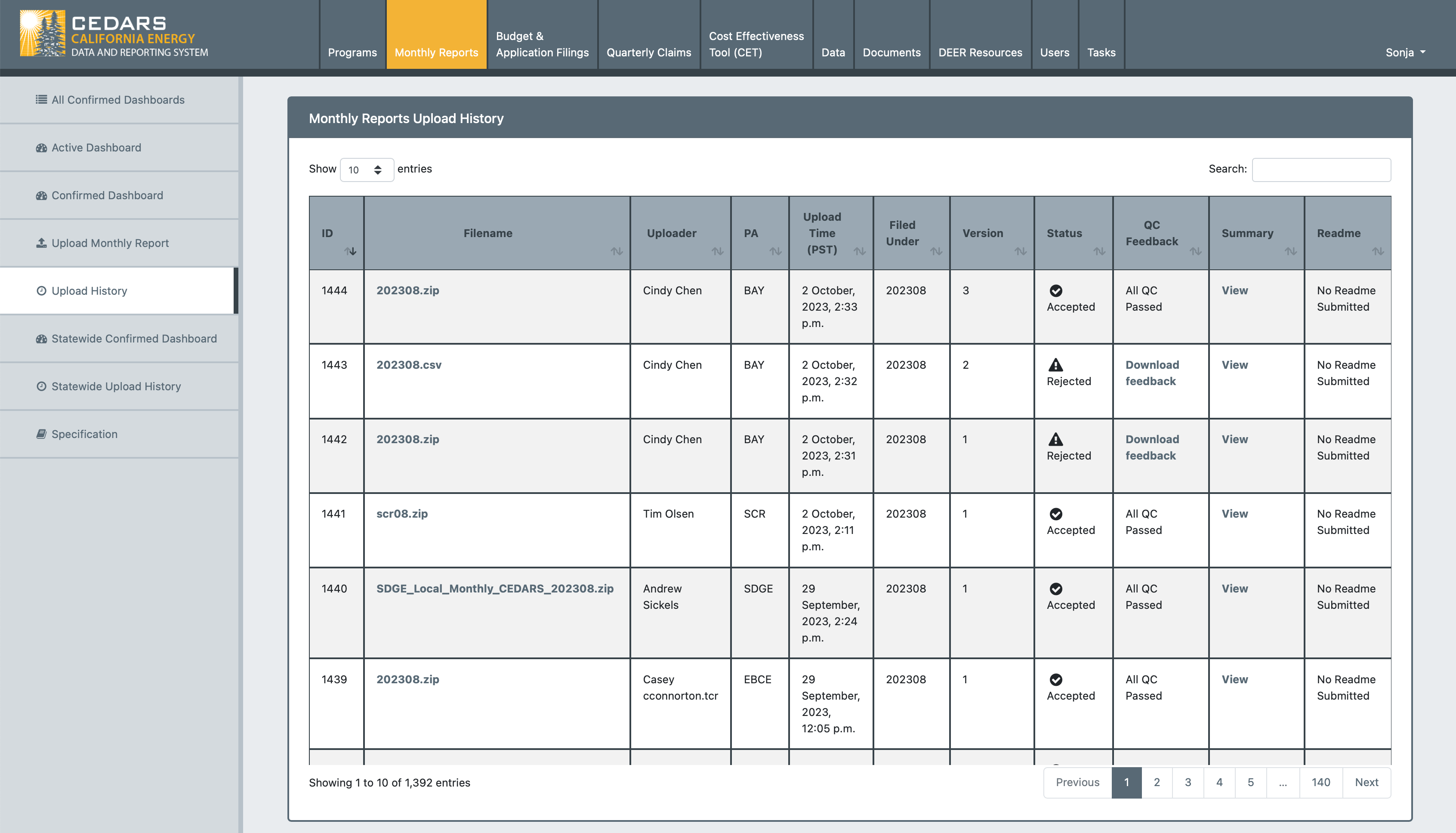
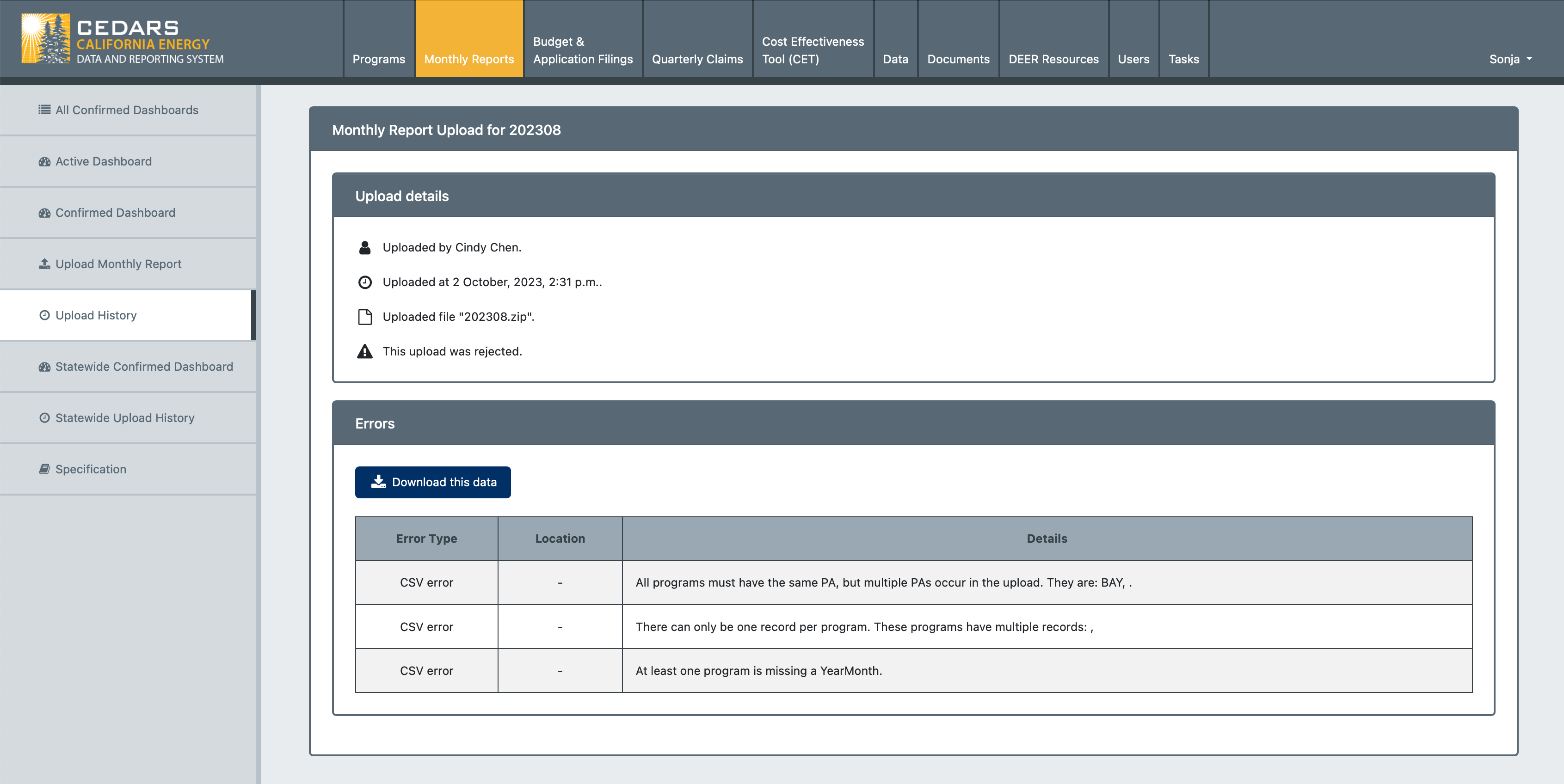
In the Monthly Reports Upload History section, you can find information and the status of your monthly report upload. Under the column Status you will see if your data has been Accepted or Rejected.
Quality Control (QC) Feedback
If any data in your monthly report upload fails QC, the entire upload will be rejected. You can View a summary of the errors or Download feedback.
Viewing Accepted Uploads
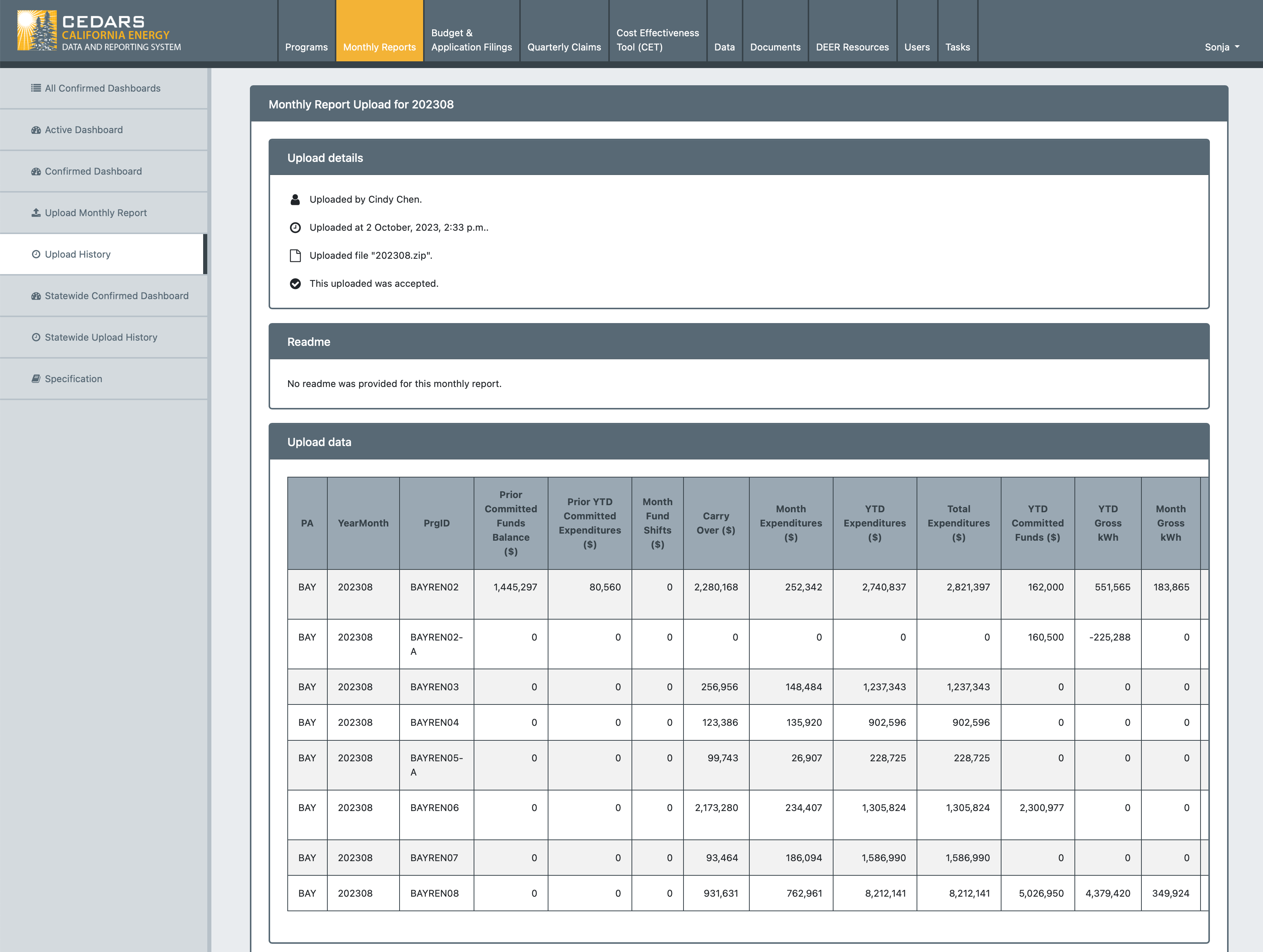
Accepted uploads will appear in your Active Dashboard. You can also review the upload summary from the Upload History page by clicking View in the summary column.
Reviewing Monthly Report Data
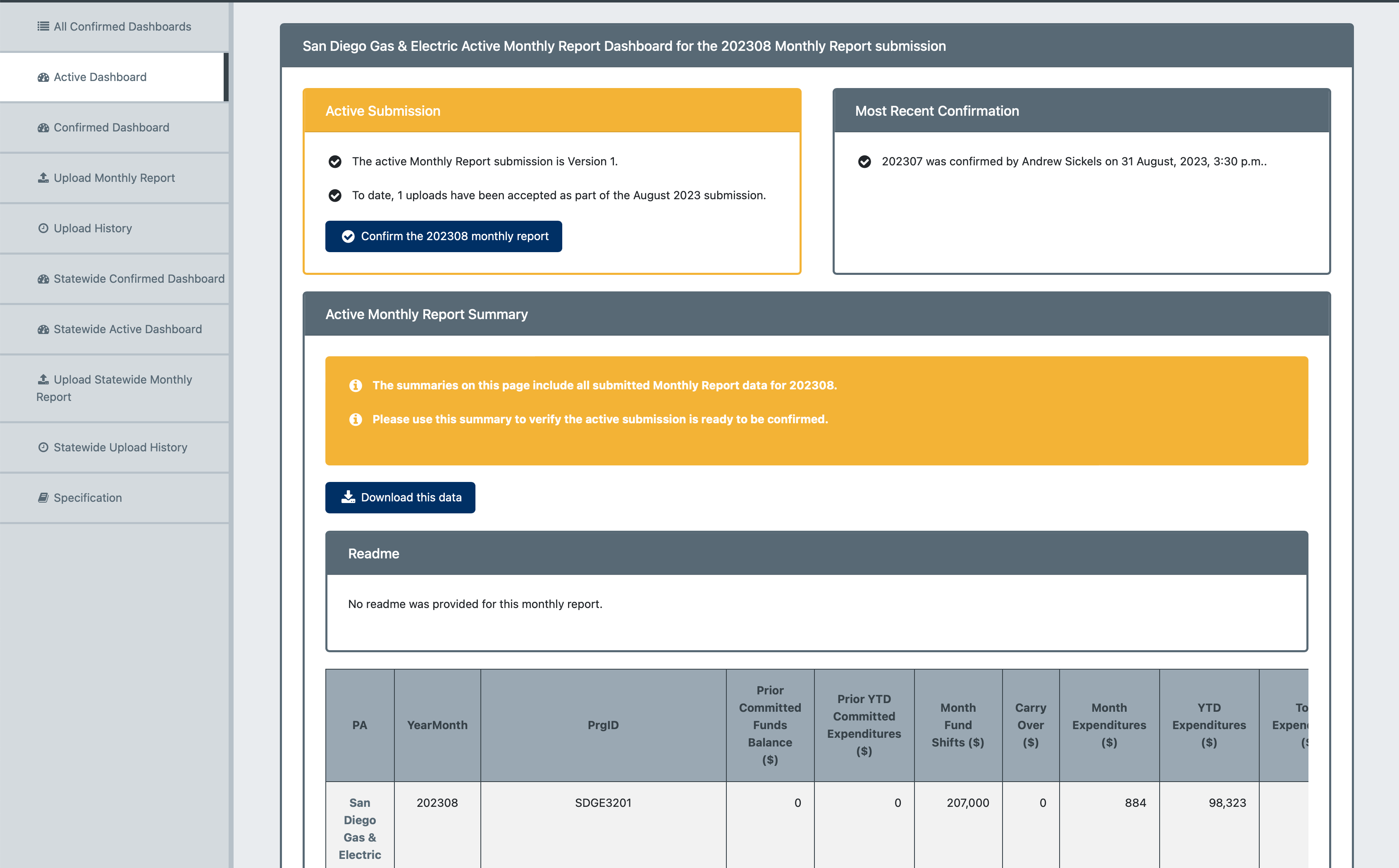
Review your Monthly Report data on the Active Dashboard. When you are satisfied with all the data for that month, an Admin user from your organization can confirm it by clicking the Confirm the [YearMonth] monthly report button in the Active Submission section.
Confirmation and Display
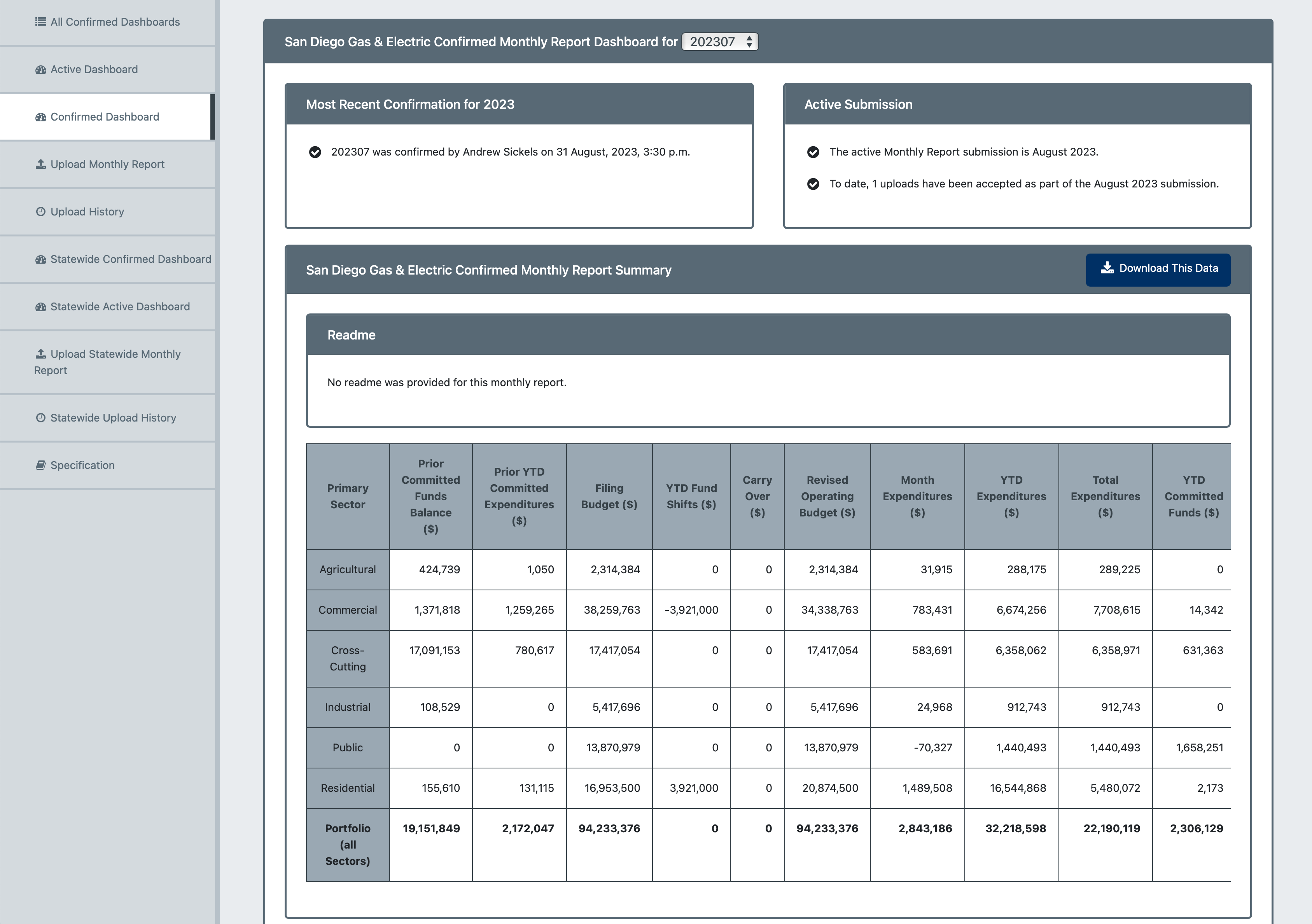
The confirmed data will be displayed in the Confirmed Dashboard, and your active monthly report submission will be shown as the data for the next month.
Additional Information
When monthly report data are uploaded and pass QC, they will overwrite any previously submitted data for that year with the new upload.
Each monthly report upload is considered a stand-alone submission. If data for a YearMonth that was previously submitted is resubmitted, the prior submission data will be deleted entirely, and the new submission will become the data of record.
Tip for Mac Users: When compressing files into a ZIP format, ensure that no extra hidden files are included, such as DS_Store and __MACOSX
Was this helpful?
Still need help? Ask the team