CET_UI page keeps crashing
Hello,
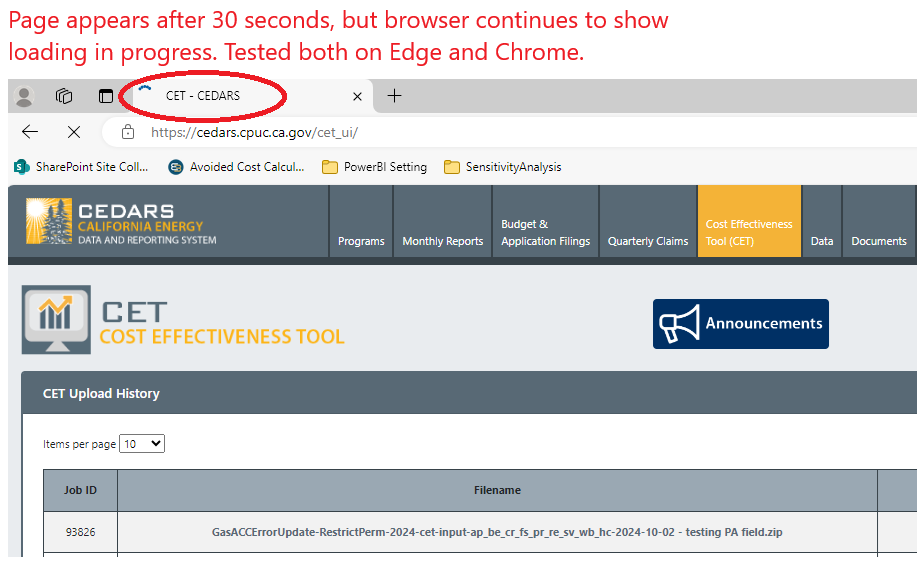
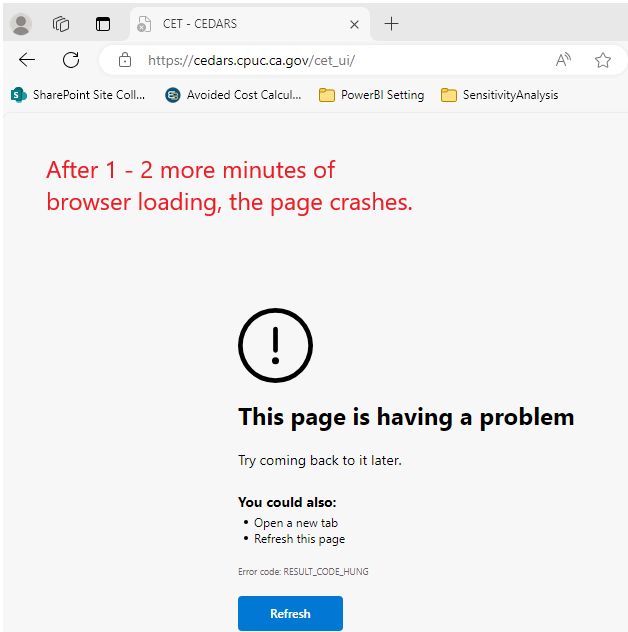
My CEDARS - CET UI Page is very slow to load. Other pages on CEDARS load immediately. The CET_UI page takes 30 sec to 1 min to load, and when it appears, the browser continues to show the spinning loading icon. Then after another 1 to 2 more minutes, the page crashes.
- Select the module in CEDARS
- Select user type
Log in to comment and vote
Comments3
cedars team
Nov 14, 2024
Hi @chau.nguyen, after investigating the error code, it looks like a browser issue will cause it. I've found the following advice on how to fix it in Edge and Chrome browsers.
Fix 1: Reload the web page
Sometimes, reloading the particular webpage that presents the error code: RESULT_CODE_HUNG may work.
To reload the webpage, click the Reload icon at the top-left corner of your browser or press Ctrl + R on your keyboard.
If this doesn’t remove the error code, you should proceed with the next solution.
Fix 2: Update your Browser
Sometimes, you might encounter the RESULT_CODE_HUNG error if you use an outdated browser that may not be compatible with certain webpages. To resolve this issue, it is recommended to update your browser to the latest version.Once the update finishes, restart your browser to check if the error code: RESULT_CODE_HUNG disappears.
Fix 3: Clear Cache and Browsing Data
Excessive data accumulation in your browser can hinder performance and cause the RESULT_CODE_HUNG error. To fix this, clear your cache and browsing data. If the error persists, try a different solution.
Fix 4: Disable Extensions
The error code RESULT_CODE_HUNG may appear due to a corrupted extension installed in your browser. To resolve this issue, it’s best to turn off all browser extensions and re-enable them one by one to identify the problematic extension. This process may take some time.
For Google Chrome
Step 1: Launch Google Chrome , type chrome://extensions/ in the search bar, and press Enter to enter the Extensions window.
Step 2: Turn off the toggle in each extension to disable them.
For Microsoft Edge
Step 1: Launch Microsoft Edge and then click the three dots icon.
Step 2: Go to Extensions > Manage extensions.
Step 3: In the Extensions window, turn off the toggle after each extension to disable them.
After turning off all your browser extensions, restart your browser to check if the error has been resolved. If you can access webpages normally, this suggests that the extensions were causing the error. In this case, enable one extension at a time and monitor whether the RESULT_CODE_HUNG error reappears. If the error occurs again after enabling specific extensions, you should remove those problematic extensions.
Fix 5: Reset the Browser
When something is wrong with your browser, the error code: RESULT_CODE_HUNG may get in the way and prevent you from browsing web pages. To fix it, you can reset your browser settings to default.
cedars team
Nov 12, 2024
Hello @chau.nguyen, We will look into this for you. Does the crash happen when you navigate to the CET UI or after any other action, like scrolling or clicking on a button?
chau.nguyen
Nov 12, 2024
It only happens when I first navigate to that page either by using the URL or clicking on the “Cost Effectiveness Tool (CET)” tab. I just wait for the page to load - it crashes without any action from my end.
However, when the page first appears, within the 1 - 2 minute window before it crashes, I can click the other links (e.g., Specification, Run CET, etc.) and be successfully navigated to it. If I submit a CET run, then the CET_UI is back to normal (no loading and no crashing).